Navigating svEye: Layout, Home Page and Settings
This guide walks through the svEye interface: how the application is laid out, what the home page shows, and where to find your settings.
Application layout
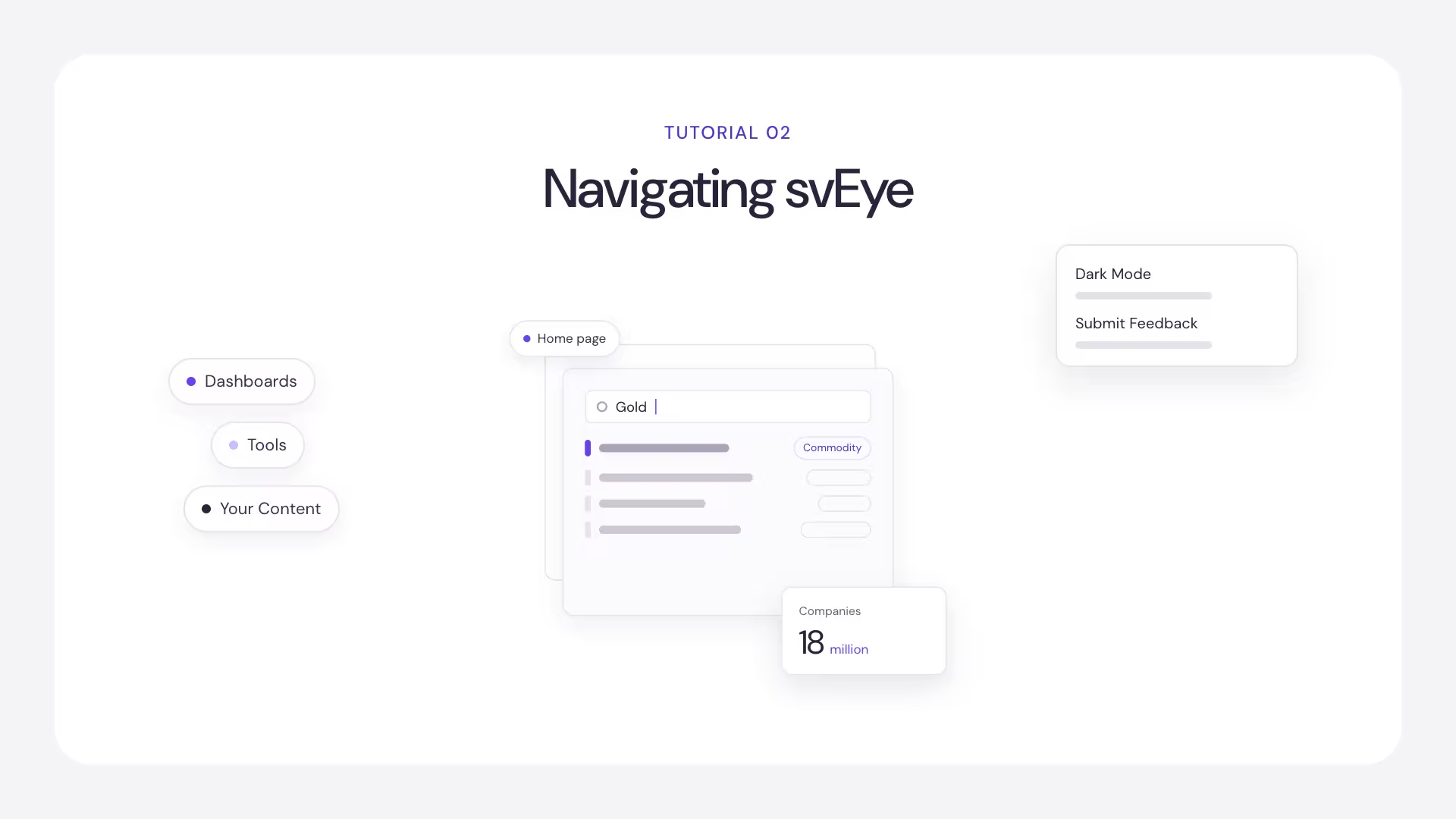
svEye has a navigation sidebar on the left and a main content area on the right. You can collapse the sidebar with the panel icon next to the logo. The tool you are using is highlighted in the sidebar, so you always know where you are.
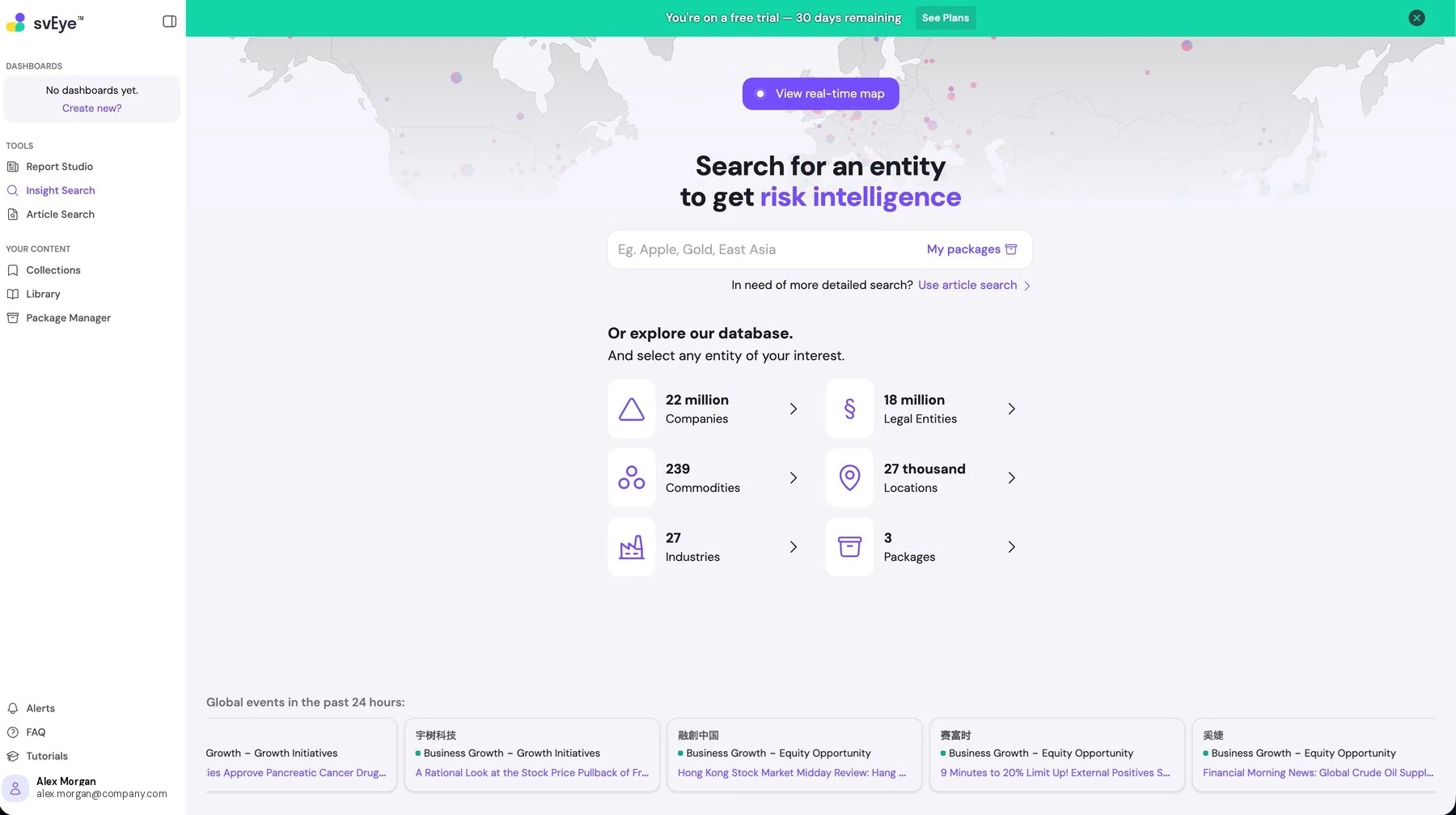
The sidebar has four blocks:
- Dashboards: your saved dashboards.
- Tools: Report Studio, Insight Search and Article Search.
- Your Content: Collections, Library and Package Manager.
- Bottom bar: Alerts, FAQ, Tutorials and your profile.
The home page
svEye opens on the Insight Search page by default, which doubles as the home page.
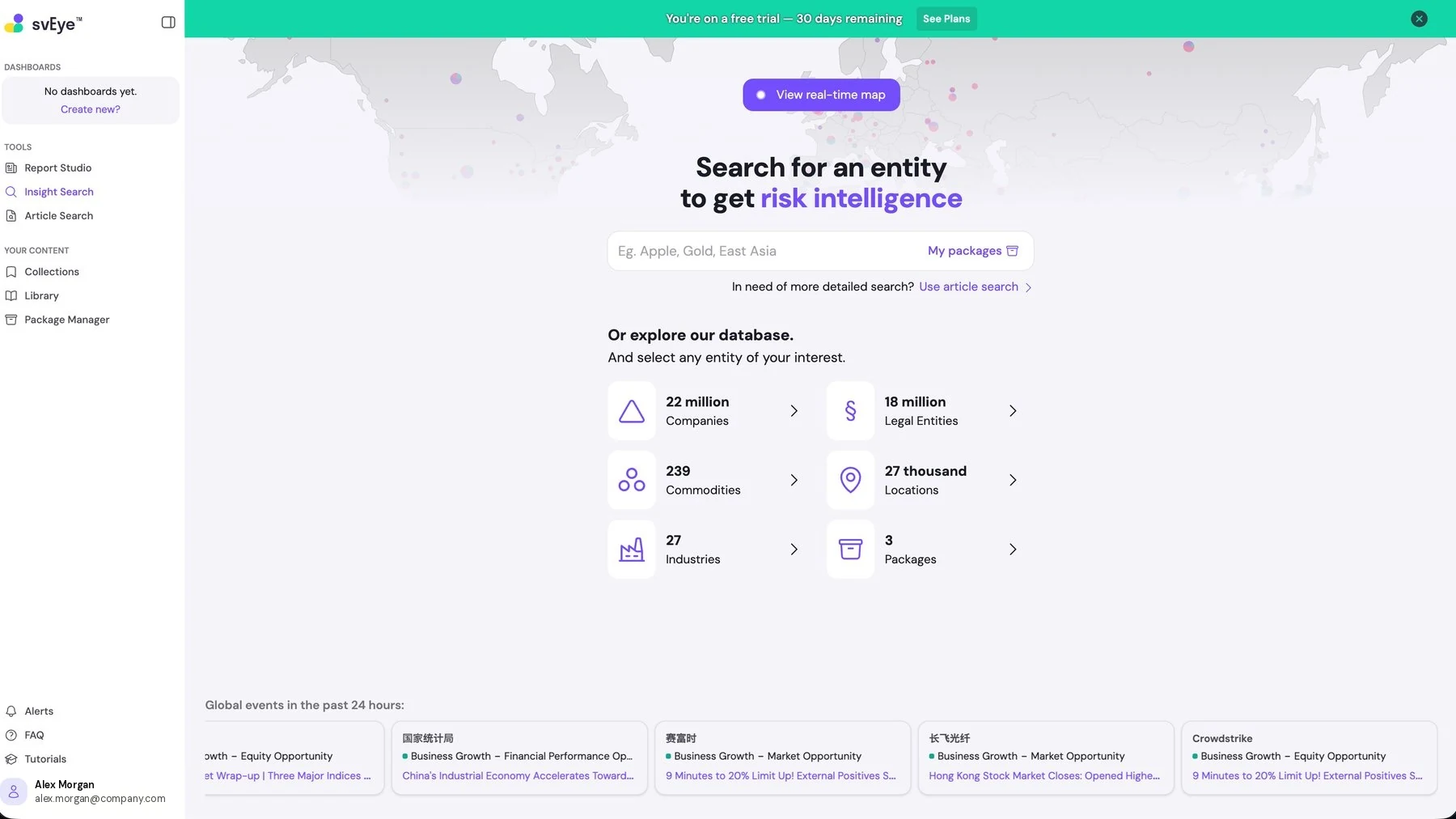
- Entity search: enter a company, commodity, industry or location, and svEye returns the risk intelligence associated with it. My packages gives you direct access to the entity packages assigned to your account.
- Real-time map: View real-time map opens a live global view of detected events, plotted by location.
- Database explorer: under Or explore our database, svEye shows the current size of each entity type and lets you browse it instead of searching by name. The counts are read live from the platform, so they change over time.
- Use article search: when entity-level intelligence is not specific enough, this link takes you to full Boolean search over the underlying articles.
- Global events, past 24 hours: a scrolling selection of recently detected events, each with the entity, the event classification and a link to the source article.
Everyday controls
Subscription banner. A banner at the top of the screen shows the status of your current billing period. Close it with the cross on the right. You can bring it back from Account Management.
Notifications. Alerts in the bottom bar opens your in-app notifications. svEye tells you there when background work has finished, such as a long-running search or a Report Studio report. These tasks run on the server, so you can leave the page and come back later.
Help and learning. FAQ and Tutorials link to the public Semantic Visions resources and open outside the application.
The user menu
Hover over your name and e-mail address at the bottom of the sidebar to open the user menu.
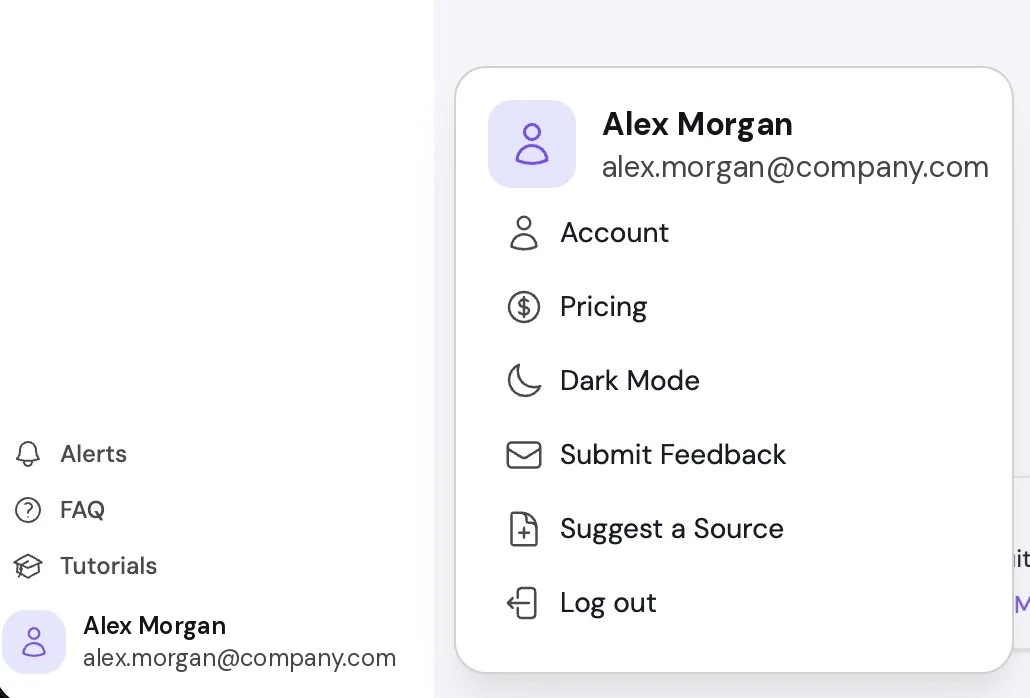
Worth knowing: if a source matters to your sector and you do not see it in svEye, use Suggest a Source to request it.
Account Management
Account Management has three tabs: Account, Billing and API.
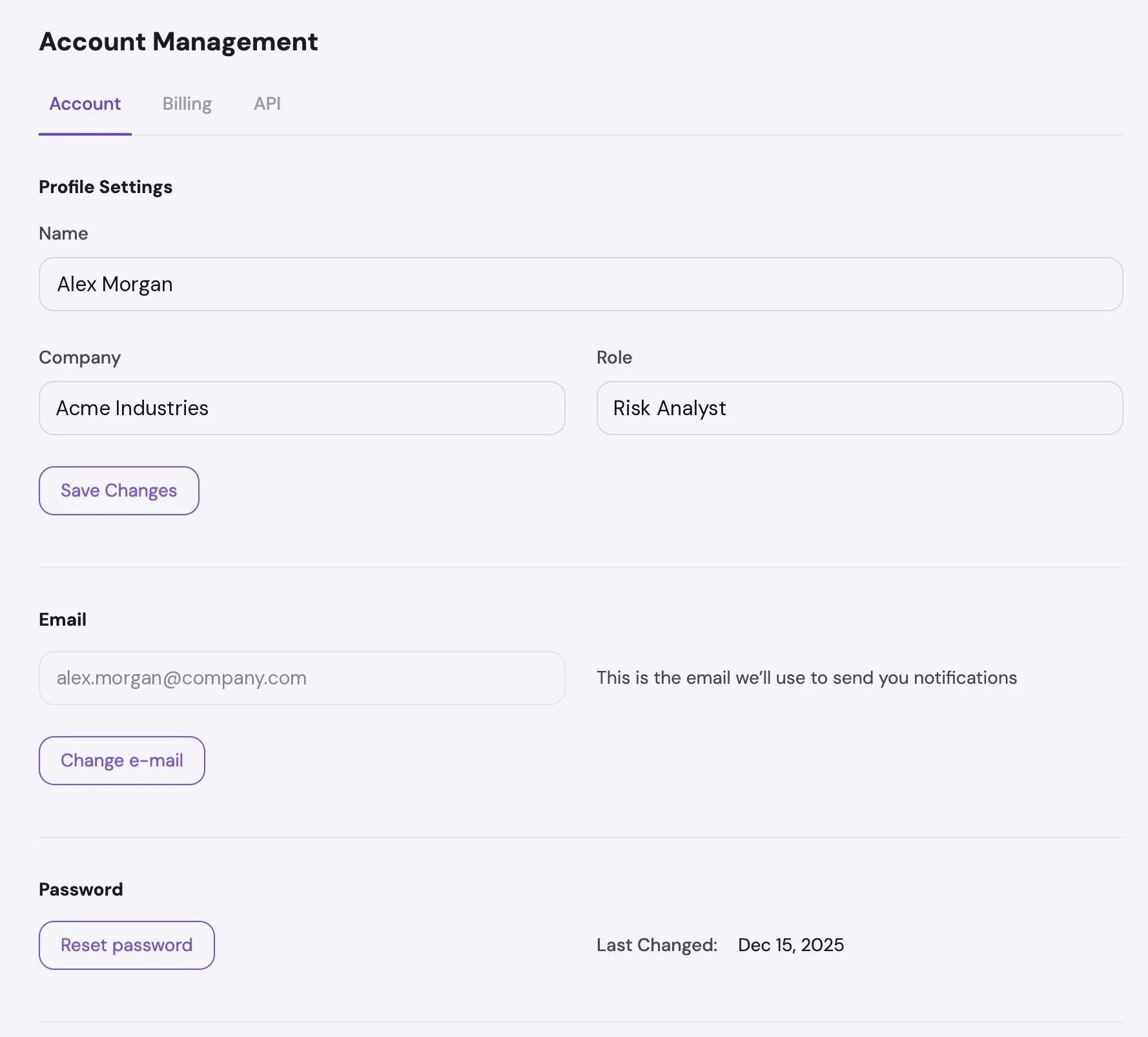
In the upper section of the Account tab:
- Profile settings: your name, company and role. Edit the fields and select Save Changes.
- E-mail: the address svEye uses for notifications. Change e-mail includes verifying the new address.
- Password: Reset password starts the password reset flow. This does not apply to single sign-on users.
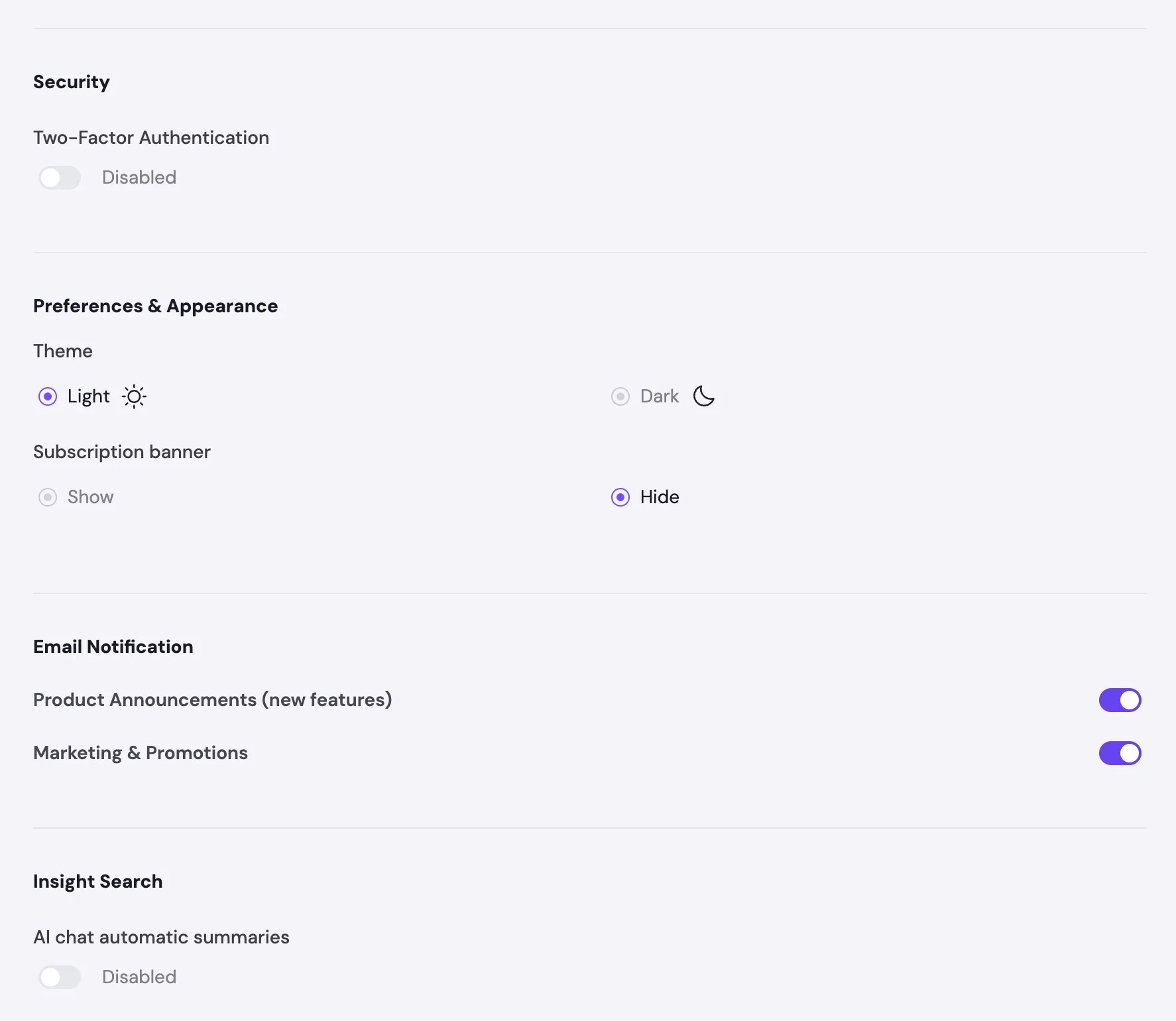
In the lower section:
- Security: turn two-factor authentication on or off at any time.
- Preferences: light or dark theme, and whether the subscription banner is shown.
- Notifications: separate switches for product announcements and marketing messages. These control svEye's own messages to you. They do not affect alert or export e-mails from your own searches.
- Insight Search — AI chat automatic summaries: controls whether the Risk Intelligence Assistant (RIA) creates summaries automatically as you work. With this off, RIA responds only when you ask.
The Billing tab holds invoices, payment method and subscription details. Enterprise customers manage commercial terms through their account manager. The API tab holds service accounts for programmatic access. The API is licensed separately, so if the tab is empty, it is not part of your subscription.