
How to Save, Share, Export and Set Alerts in svEye
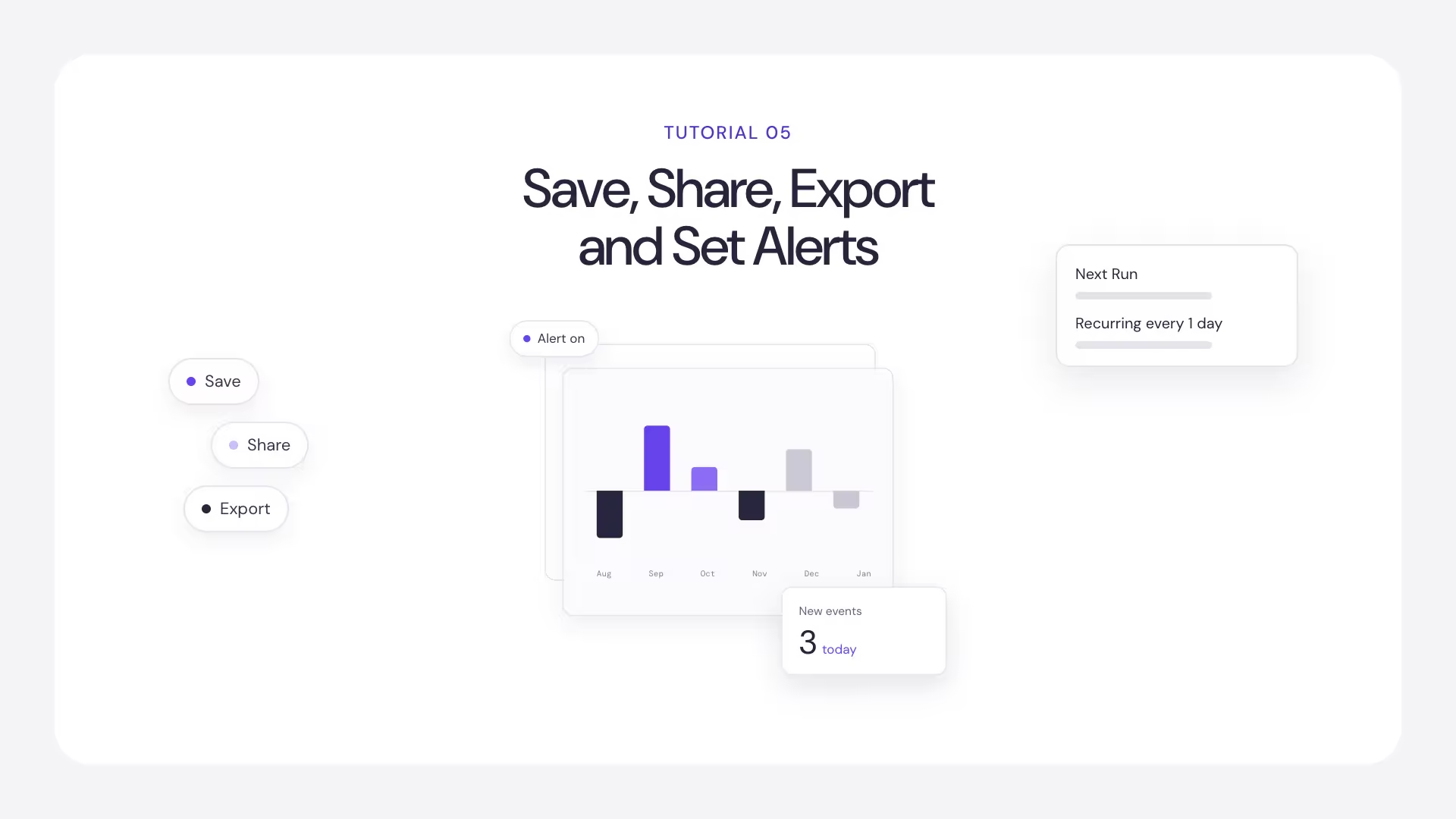
A search in svEye does not have to be a one-off. From the results header you can save it, share it with a colleague, export the results, or schedule it as an alert that runs by itself and tells you what is new.
The results header
The header at the top of the results view identifies the search and holds the actions that apply to the whole result set. It stays visible as you move between result tabs.
Save a search
Each search gets a default name based on the date it was created. Rename it with the pencil icon. Renaming also saves the search, so a named search will be waiting for you in your Library. If you keep the default name, use Save.
Last Run shows when the search was last run, which matters when you come back to a saved search after some time.
Saving stores the configuration, not the results. When you run a saved search again, it runs against current data, which is the point.
Share a search
Share creates a link you can send to another svEye user. The link carries the search configuration (entities, time range and filters), not a frozen copy of your results. When your colleague opens it, svEye runs the configuration for them.
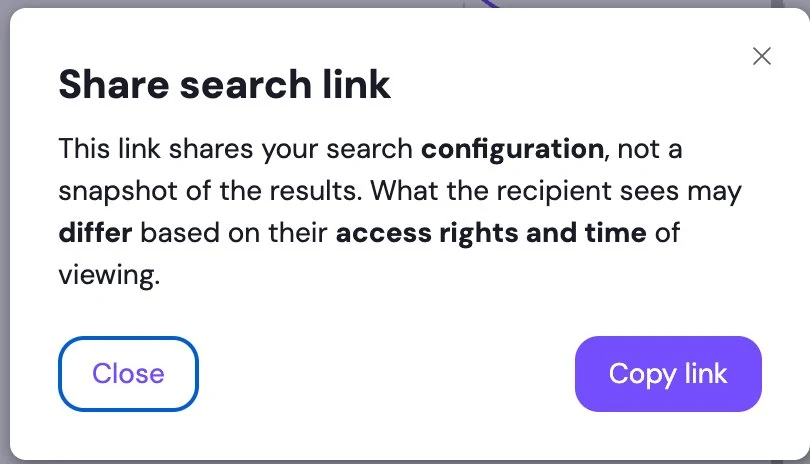
This has two consequences:
- What they see depends on when they open it. New events detected in the meantime will appear, so a link opened next week will not show the same results.
- What they see depends on their access rights. If their account does not cover an entity or data type in your search, that part will not be visible to them.
Share a link when you want a colleague to work with the same search. When someone needs to see exactly what you saw, export the results instead.
Export results
Export takes the results out of svEye in a choice of data formats, within the export allowance on your account. You can cap the number of records and choose the format. The dialogue shows how much of your allowance is left, so you know before you start whether a large export will use it up.
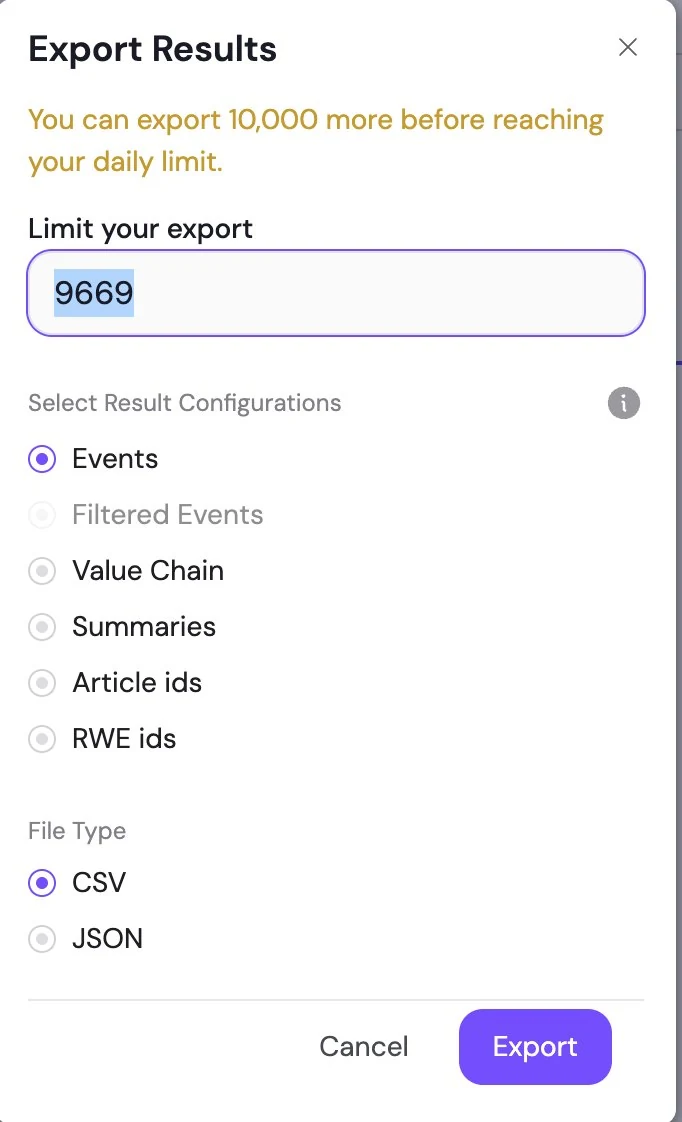
Exports run in the background. When yours is ready, you receive an e-mail with a download link and a notification in the application, so you do not need to stay on the page.
Set an alert
Set Alert turns a search into a scheduled, recurring one. This is how ongoing monitoring works in svEye: instead of remembering to run a search again, you let svEye run it and tell you what is new.
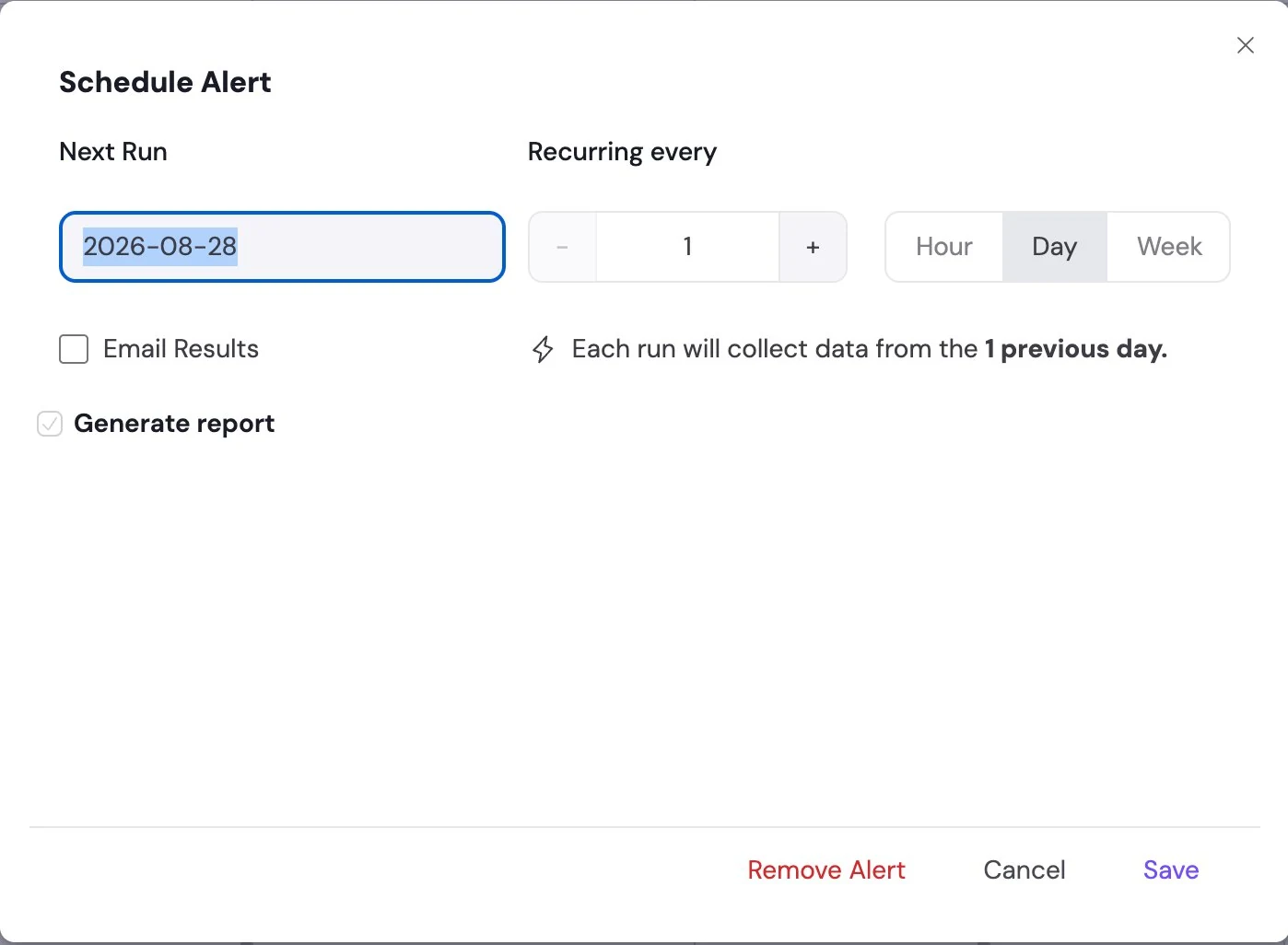
Turn on Email Results. Without it, a scheduled alert only helps if you remember to go and check.
Cadence defines the window: a daily alert returns what was detected in the previous day, and a seven-day alert returns the previous seven days. The dialogue states the window explicitly. Choose the cadence by how quickly you need to act, not by how much you want to read. A weekly alert on a fast-moving supplier will keep reaching you after the point when you could have done something about it.
Add automatic reports
With Generate report turned on, every scheduled run feeds its results into Report Studio and produces a written report automatically. You choose which result types the report draws on: summaries, events, or both.
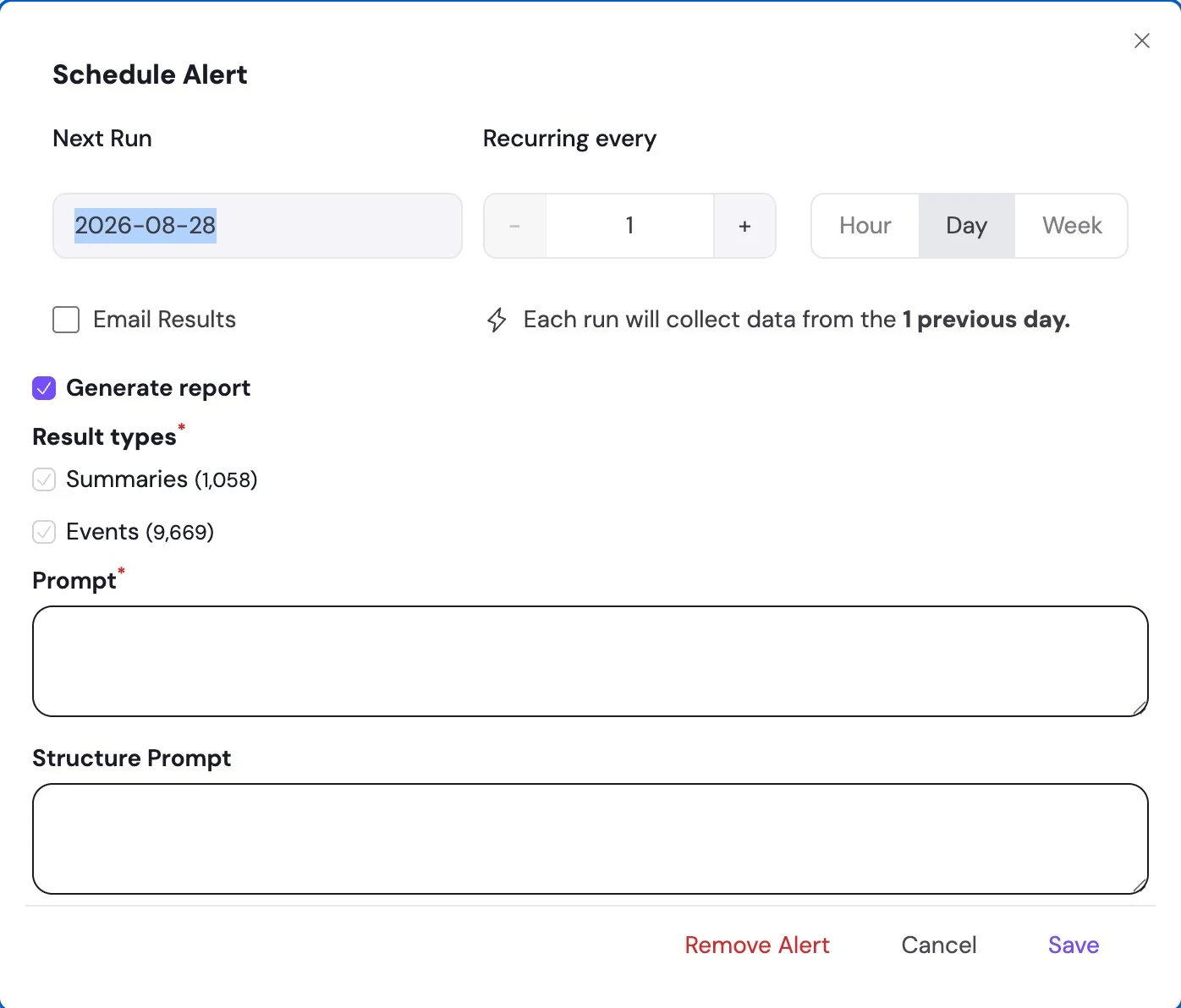
- Prompt: what you want the report to cover.
- Structure Prompt: how the report should be organised.
Write them once, and every scheduled run produces a report in the same shape. That is what makes the reports comparable from week to week.
Next in this series
How to Analyze Value Chains in svEye: Suppliers, Tiers and Risk Exposure
Related tutorials
How to Use RIA, the svEye Risk Intelligence Assistant
How to Analyze Value Chains in svEye: Suppliers, Tiers and Risk Exposure
How to Read Results in svEye: Summaries, Pivot Table and Event Table
See Everything. Focus on What Matters.
svEye™ filters the noise to uncover meaningful patterns and insights. Gain clarity, stay informed, and drive smarter decisions with a comprehensive overview.

