
How to Search in svEye: Entities, Filters and Time Range
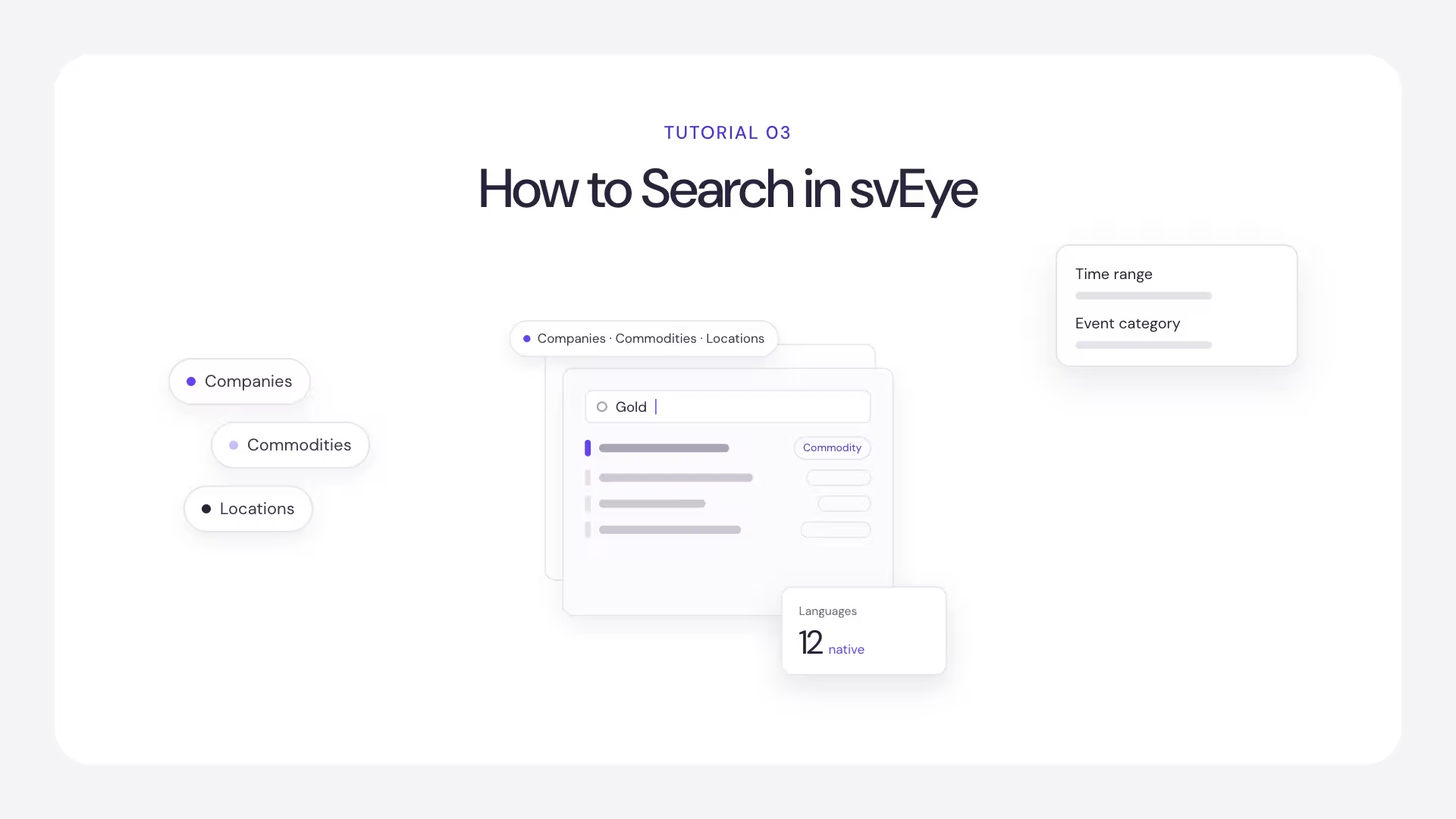
Insight Search is where most work in svEye starts. You choose what you want to monitor, narrow the scope with filters, and svEye returns the events and summaries it has detected. This guide covers building the search. The next guide covers reading the results.
Search for an entity
Type into the search field on the home page. svEye matches your text against every entity type in the platform and shows matches immediately.
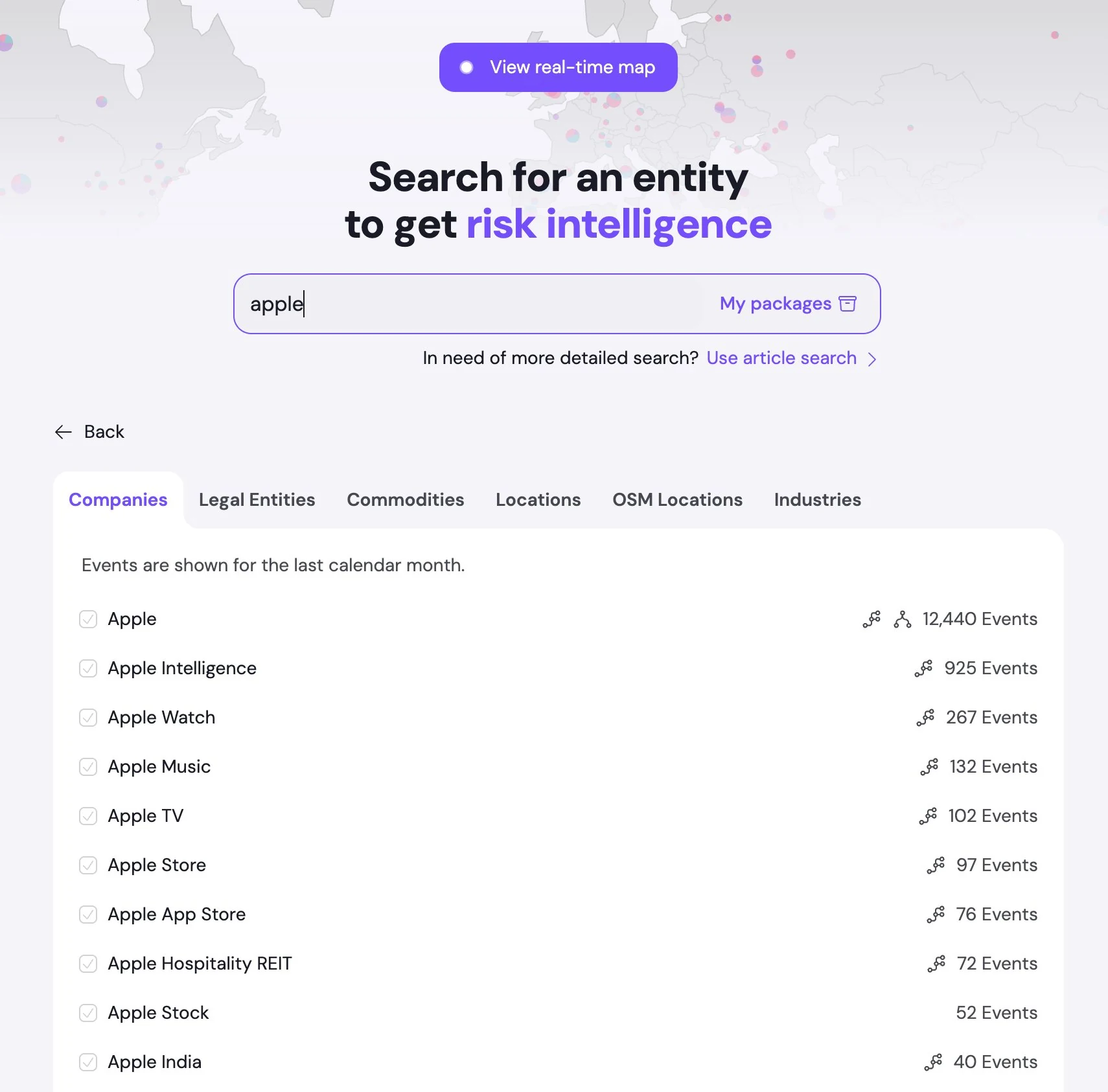
Results are sorted by event volume, highest first, so the top result is usually the one you want. Searching for "apple" puts the technology company above Apple Music, Apple Store and unrelated matches such as Applebee's. The event counts in the list cover the last calendar month.
Use the entity type tabs
Matches are grouped into tabs by entity type. The same search term usually returns hits in several tabs, and they can be very different things. "Apple" returns the company under Companies, and the towns of Appleton and Apple Valley under Locations.
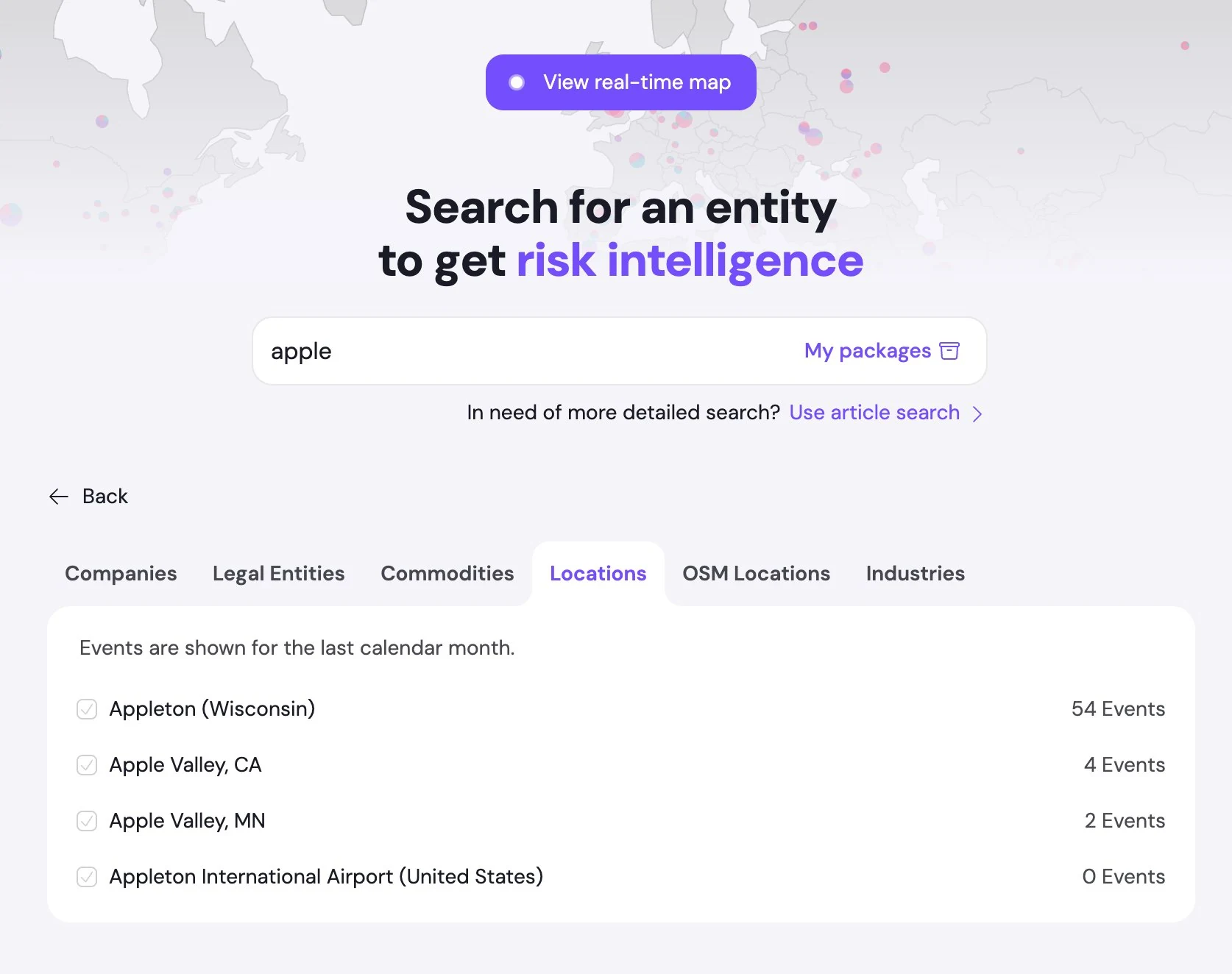
An entity with zero events is still a valid entity. It simply has not generated media coverage in the last month. Check the tabs to find the entity type you want before you select anything.
Two icons next to an entity tell you which extra data is available:
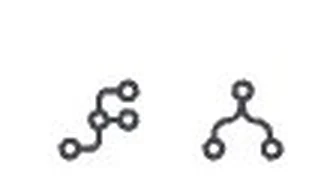
- Branches sideways: multi-tier supply chain data is available.
- Branches downward: corporate structure data is available.
- No icon: that dimension is not mapped for the entity.
Select entities
Tick the checkbox next to an entity to add it to your search. A New Search panel opens on the right and lists your selection. Remove items one by one with the cross, or all at once with Clear selection.
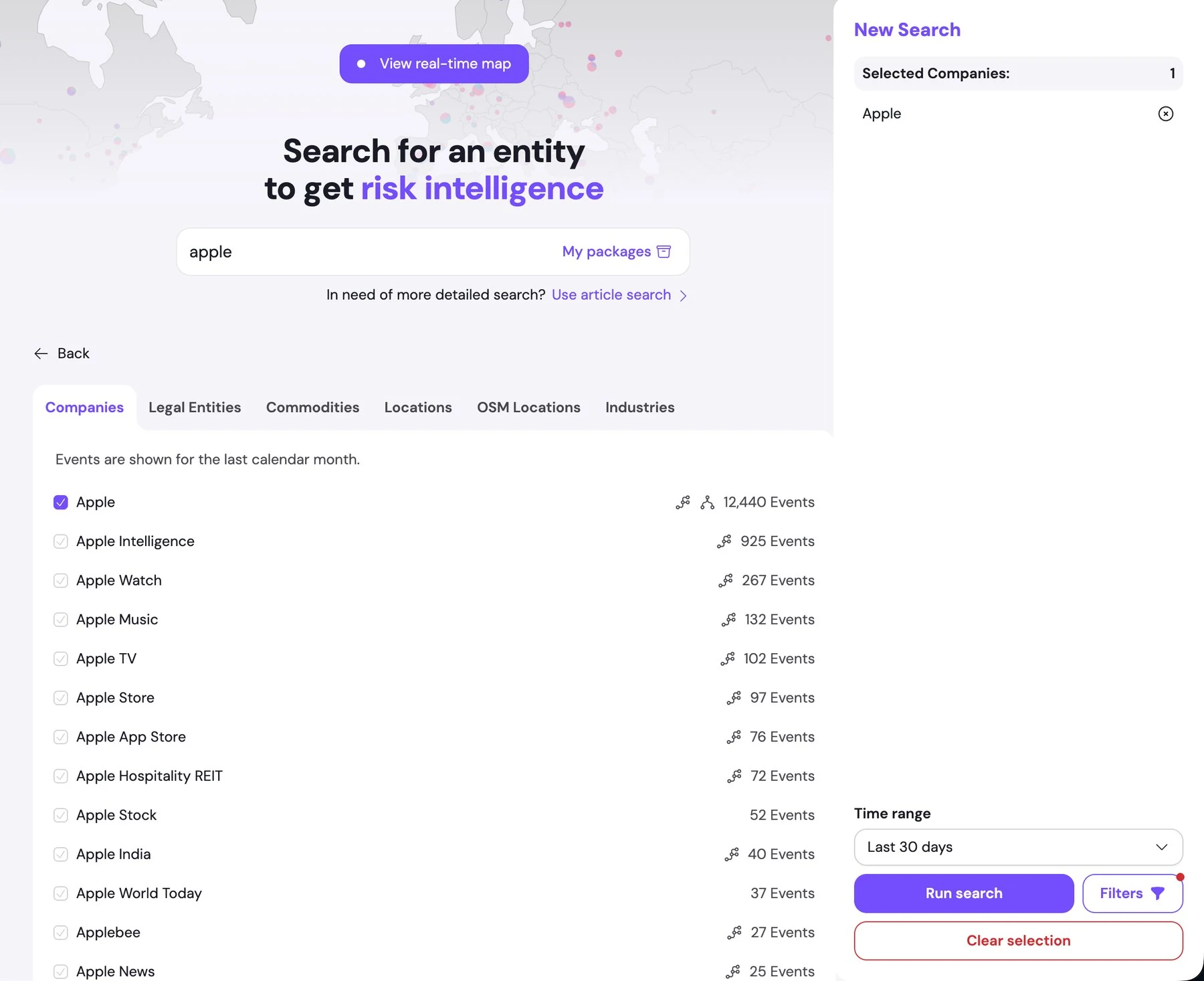
You can combine entity types in one search, for example a company together with a commodity. Where an event type only applies to one of the selected entity types, you will see it for that entity only.
If you combine an entity and an event type that never occur together, the search returns no results. That is an answer, not an error.
Set the time range
Time range sets the period the search covers. Use a short window for current developments and a longer one to see a pattern.
Use advanced filters
Filters opens the advanced filter panel. A marker on the button shows when filters are active, so you can tell at a glance that your results are being narrowed.
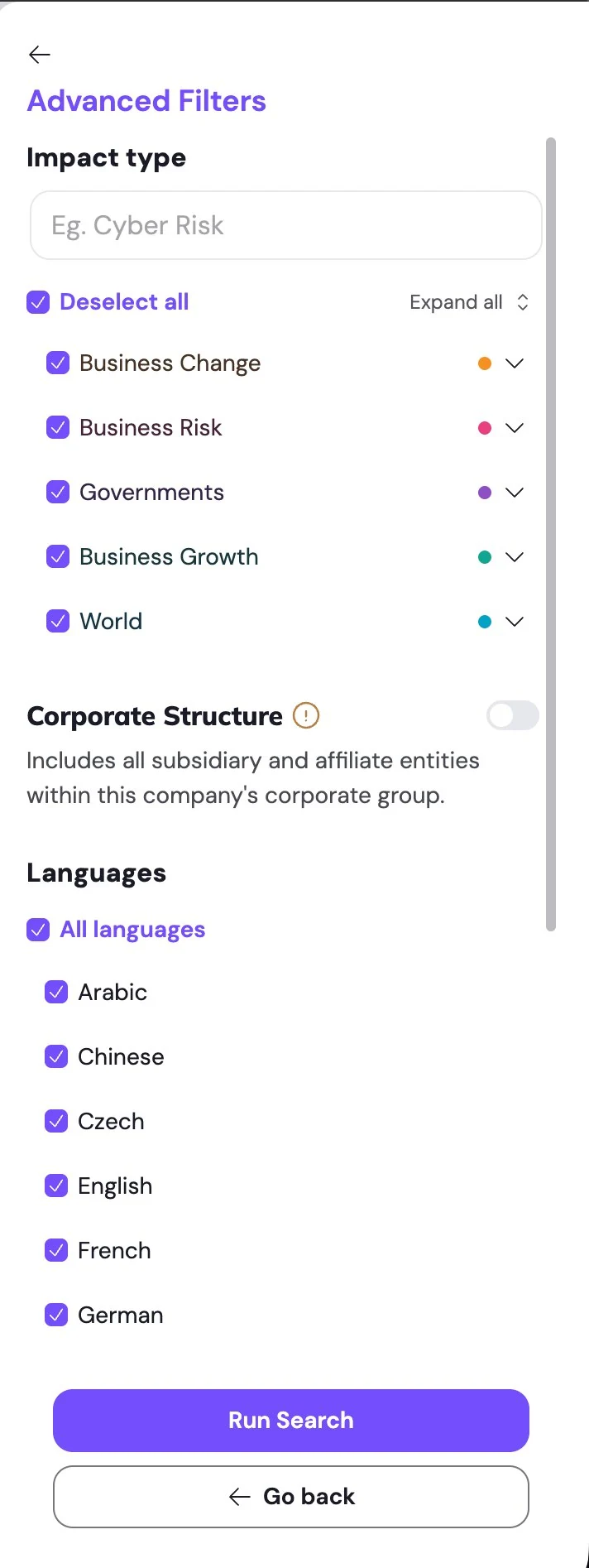
Impact type. svEye classifies every event in a three-level hierarchy, and this is the filter that shapes your results the most:
- Impact type: the broad business framing. There are five: Business Change, Business Risk, Governments, Business Growth and World. Each has its own colour, used consistently across the application.
- Event category: the mid-level group, for example Ownership changes.
- Event type: the specific event, for example Mergers and Acquisitions, Spinoffs or Nationalization.
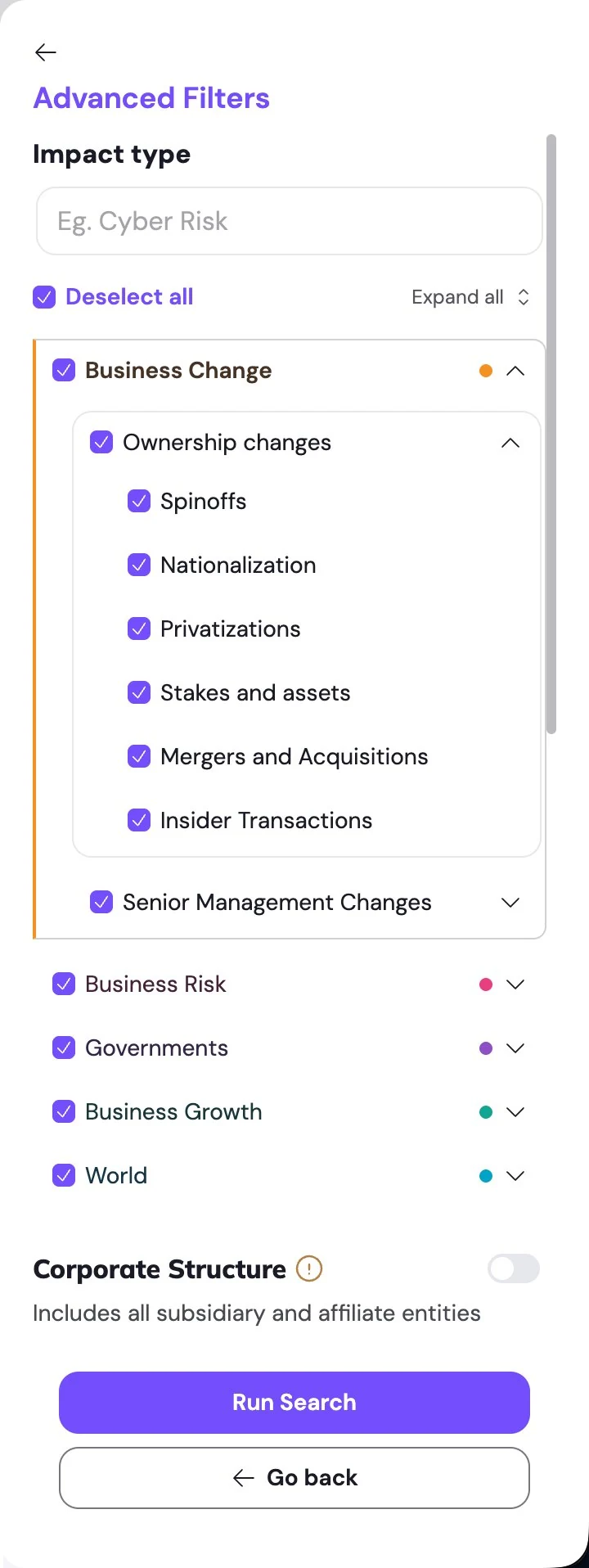
All impact types are selected by default, so nothing is excluded. For focused work, deselect everything and select only the two or three event types that matter for your question. A supply chain analyst looking for disruption signals does not need merger announcements in the same result set.
Corporate Structure. Widens the search from the entity you selected to its whole corporate group, including all subsidiaries and affiliates. A problem at a subsidiary is still a problem for the parent, and it will not appear if you search the parent name alone. Leave this off when you need results strictly about the named entity, because it greatly increases result volume for large groups.
Languages. svEye monitors sources in twelve languages: Arabic, Chinese, Czech, English, French, German, Italian, Japanese, Korean, Portuguese, Russian and Spanish. All are selected by default.
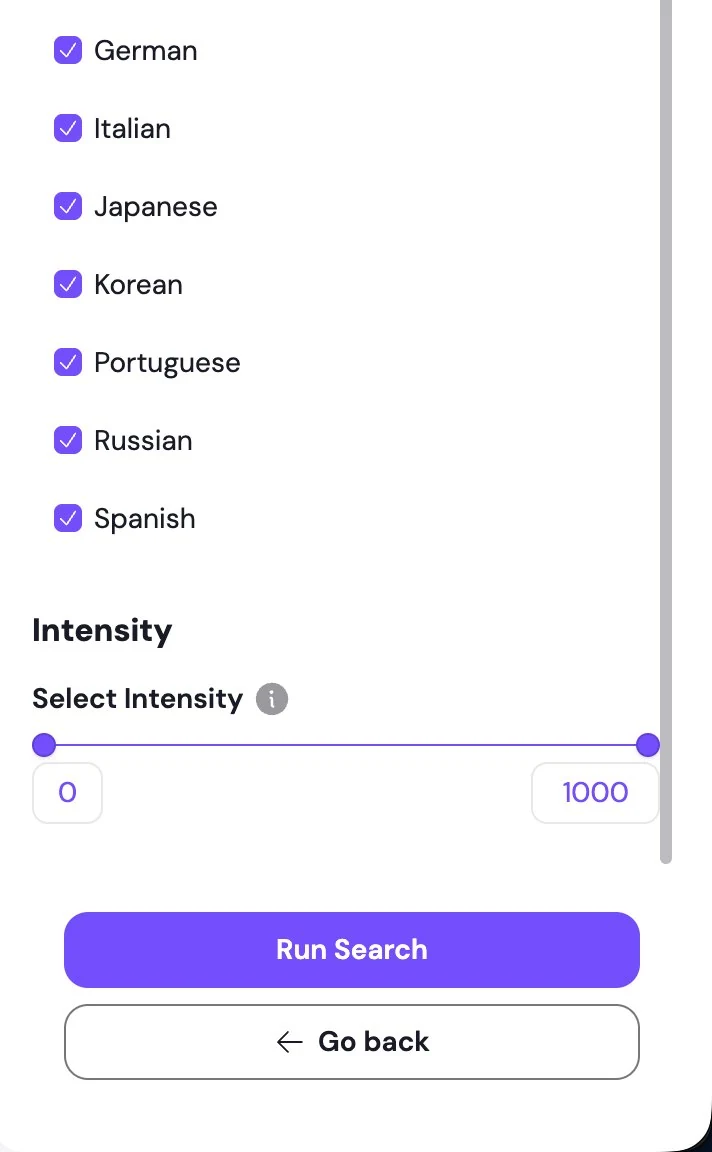
Why languages matter: local-language reporting often carries a development days or weeks before it appears in English, especially for events at facilities and suppliers outside the English-speaking world. Narrowing to English alone is the fastest way to miss the early signal.
Intensity. Measures how significant an event type is for a particular entity, relative to everything else reported about it, on a scale of 0 to 1000. A high value means the topic dominates coverage of that company. A low value means it is present but marginal. The slider covers the full range by default. Raise the lower bound to drop incidental mentions when an entity generates a lot of coverage.
Intensity is relative, not absolute. A serious but narrowly reported event at a heavily covered company can have a low intensity. Use it to triage volume, not to judge severity.
Run the search
Run Search applies the filters and runs the search. Go back returns to the selection panel and keeps your filter settings.
Next in this series
How to Read Results in svEye: Summaries, Pivot Table and Event Table
Related tutorials
How to Use RIA, the svEye Risk Intelligence Assistant
How to Analyze Value Chains in svEye: Suppliers, Tiers and Risk Exposure
How to Save, Share, Export and Set Alerts in svEye
See Everything. Focus on What Matters.
svEye™ filters the noise to uncover meaningful patterns and insights. Gain clarity, stay informed, and drive smarter decisions with a comprehensive overview.

