
How to Use RIA, the svEye Risk Intelligence Assistant
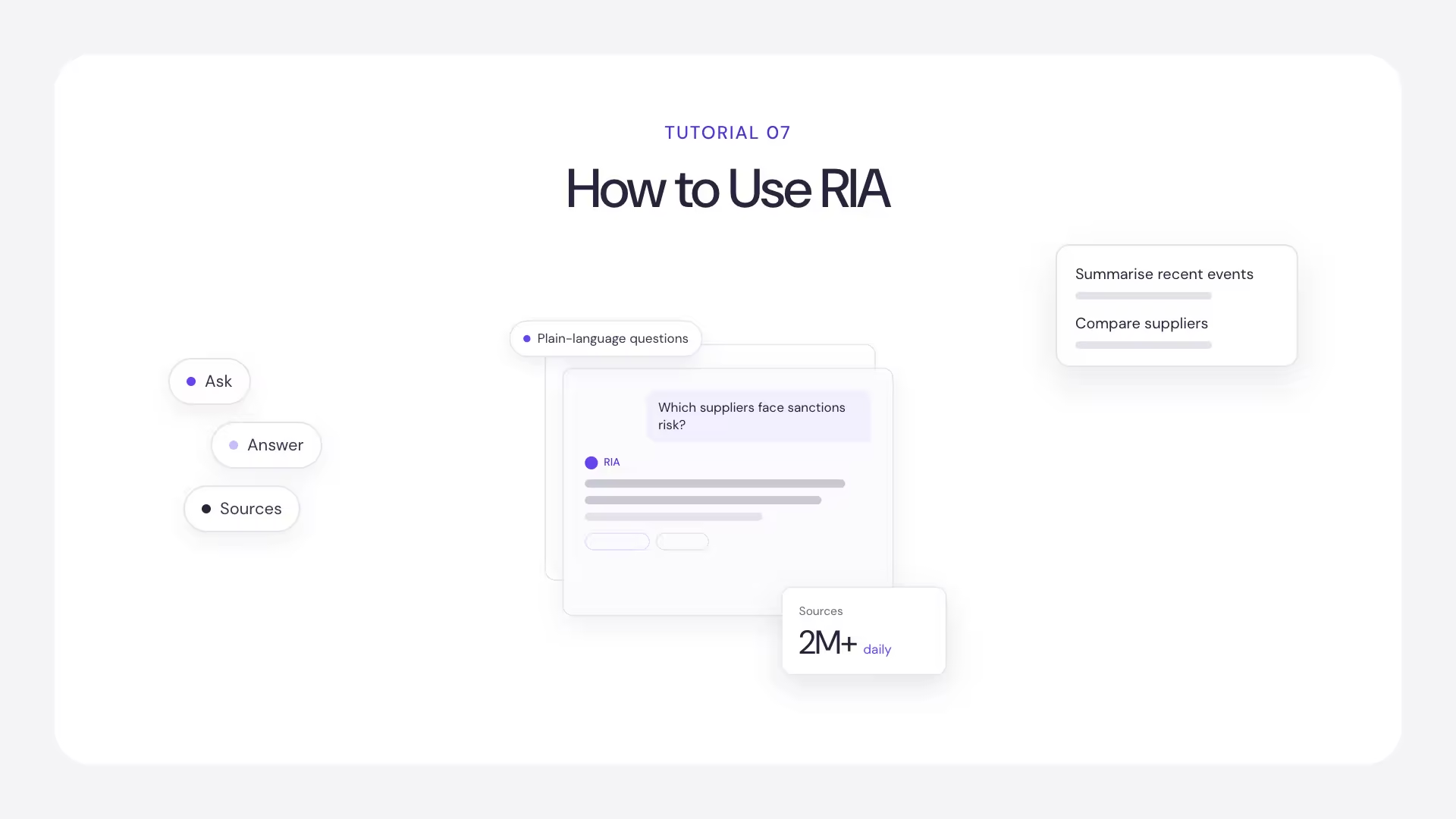
RIA, the Risk Intelligence Assistant, sits in a panel on the right of the results view. You can ask it questions in plain language about the results on screen, or start with one of its suggested actions.
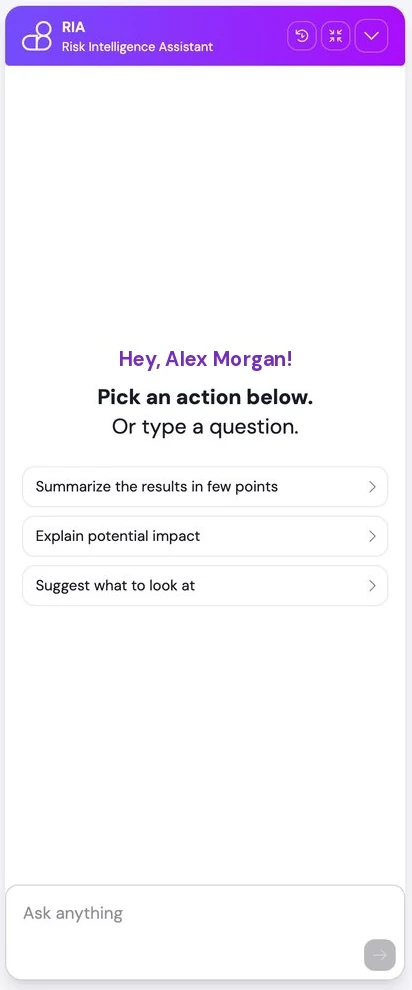
Grounded in your results
RIA answers from your result set, so its answers are based on the intelligence svEye has actually detected for your entities.
Suggested actions
- Summarise the results in a few points
- Explain potential impact
- Get a suggestion on what to look at next
Where RIA is available
RIA works on the Summaries, Pivot Table and Event Table tabs. It is not available on the Value Chain tab.
Two separate conversations
Summaries and events are different kinds of information, so RIA keeps two conversations: one for the Summaries tab, and one shared by the Pivot Table and Event Table. Switching between these two contexts starts a different session rather than continuing the same one.
In practice: ask summary-level questions ("what is going on?") on the Summaries tab, and event-level questions ("how often, since when?") on the Pivot Table or Event Table.
Controls
The RIA header lets you open earlier sessions, and collapse or expand the panel to give your results more room.
By default, RIA can create summaries automatically as you work. You can turn this off in Account Management, under Insight Search — AI chat automatic summaries. With it off, RIA responds only when you ask.
Need help?
Contact svEye support at support@semantic-visions.com, or use Submit Feedback in the user menu to reach the svEye team directly. Answers to common questions are in the FAQ.
Back to the start
Related tutorials
How to Analyze Value Chains in svEye: Suppliers, Tiers and Risk Exposure
How to Save, Share, Export and Set Alerts in svEye
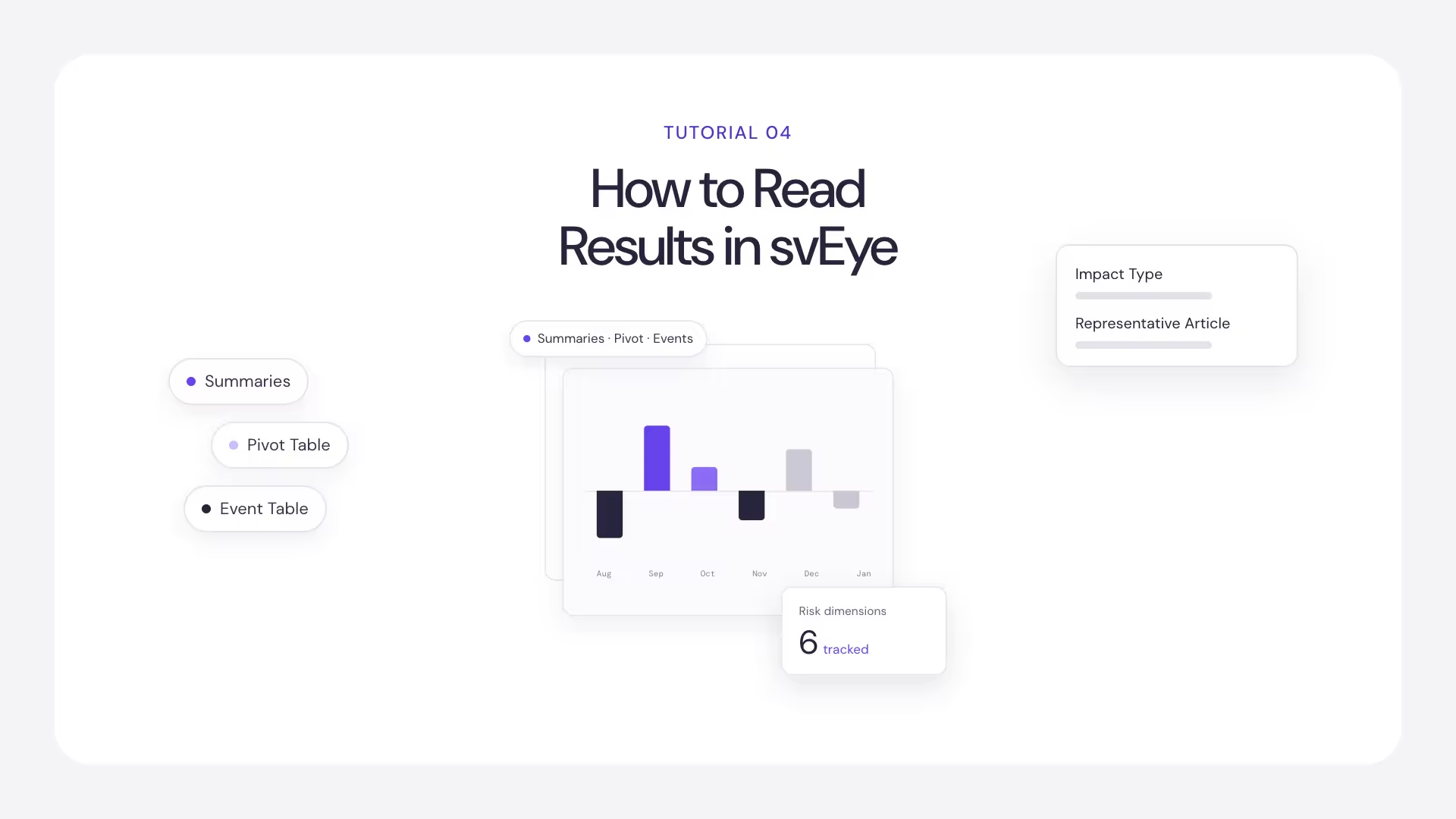
How to Read Results in svEye: Summaries, Pivot Table and Event Table
See Everything. Focus on What Matters.
svEye™ filters the noise to uncover meaningful patterns and insights. Gain clarity, stay informed, and drive smarter decisions with a comprehensive overview.

