
How to Analyze Value Chains in svEye: Suppliers, Tiers and Risk Exposure
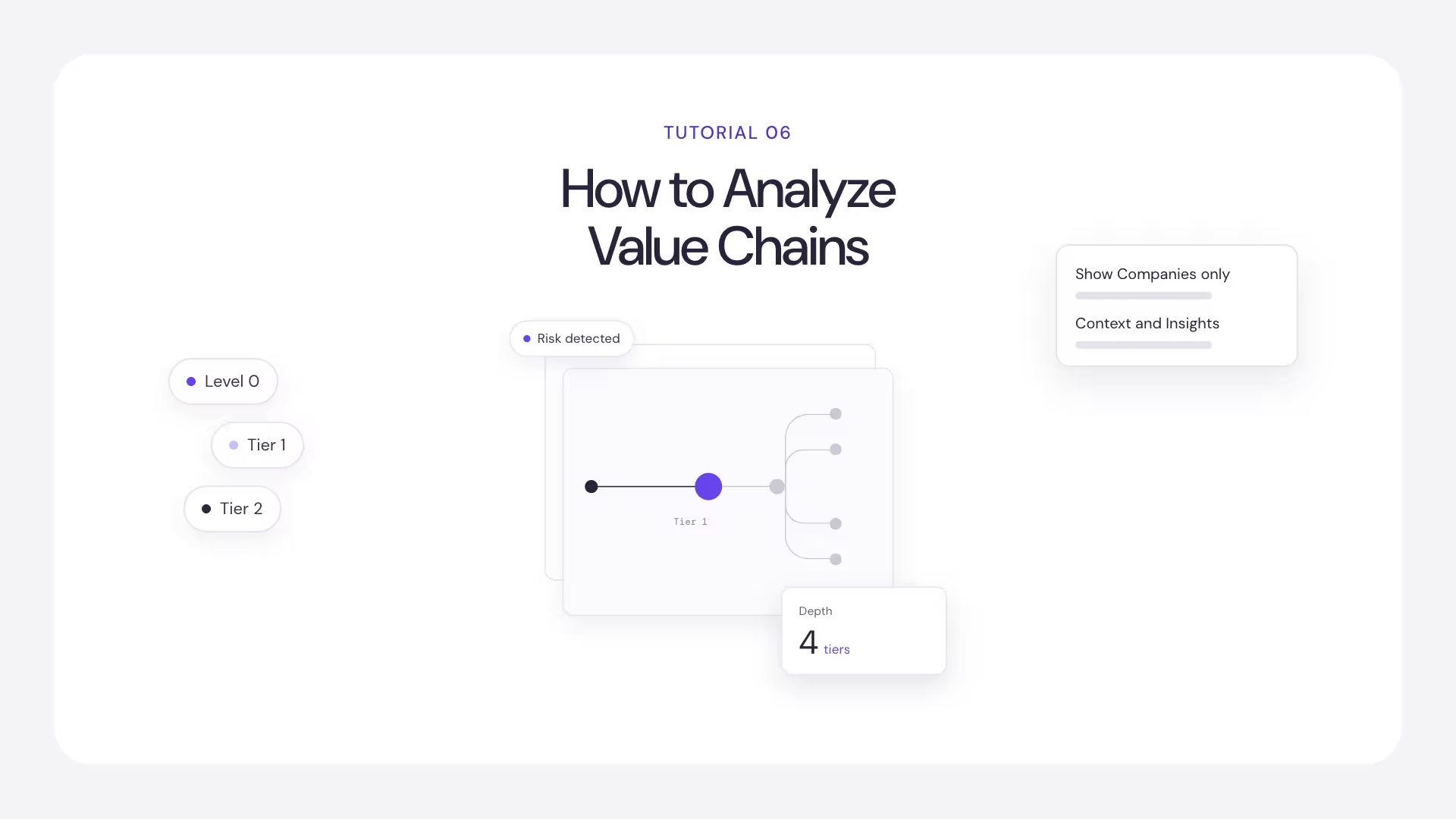
Most searches tell you what happened to the company you searched for. The Value Chain tab tells you what is happening to the companies that company depends on.
A disruption at a tier-2 supplier will not show up in a search on your own suppliers' names, but it will reach you eventually. Value Chain is where you see it first, which makes it an early-warning view.
Before you start
Value Chain works for entities with multi-tier supply chain data. In search results, these entities have an icon that branches sideways. Select one of them, run the search and open the Value Chain tab. It sits next to Summaries, Pivot Table and Event Table.
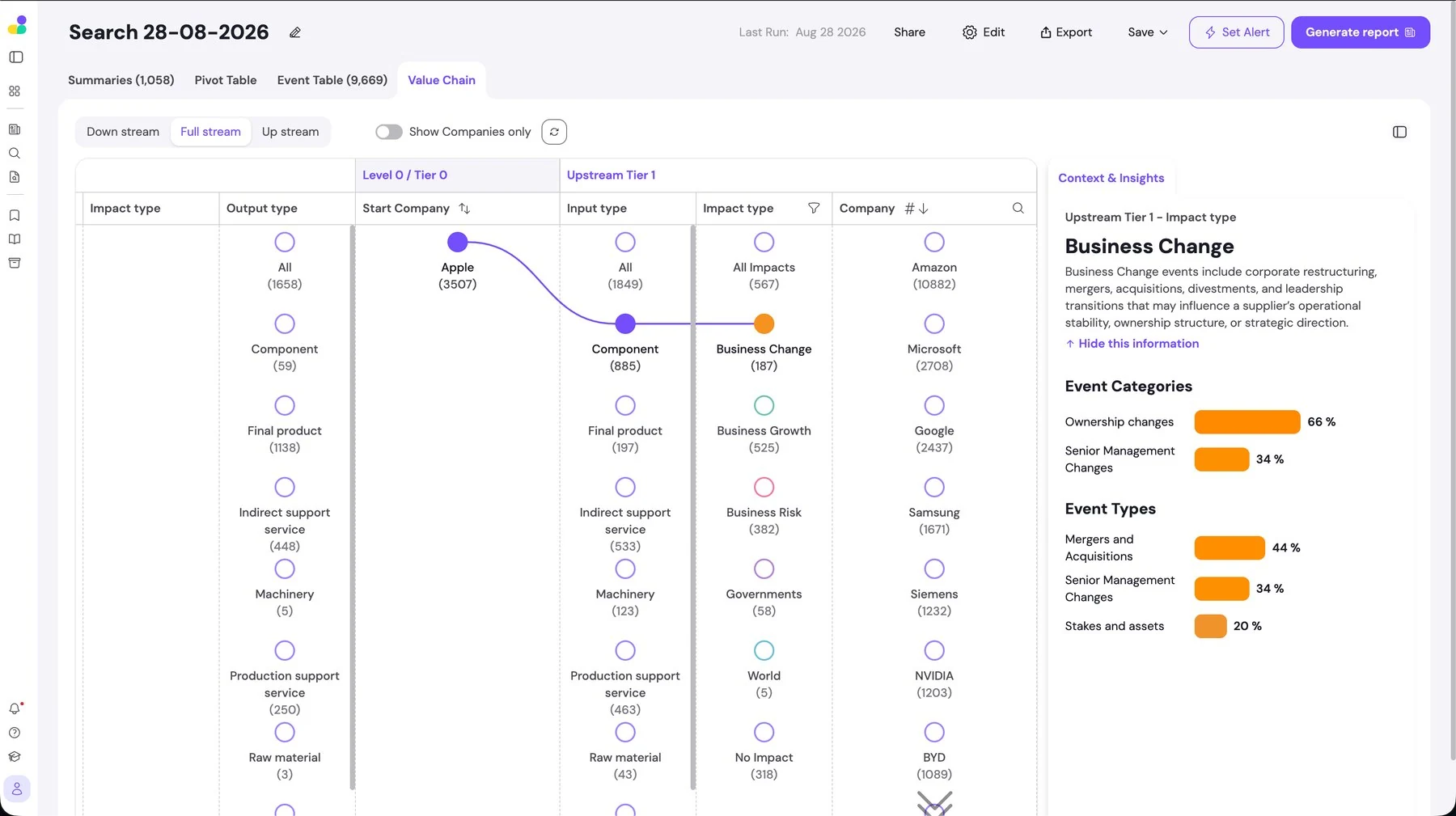
Choose the direction
- Up stream: the suppliers your entity depends on.
- Down stream: the customers and markets that depend on your entity.
- Full stream: both directions at once.
Read the chain
A practical way to work
- Start with Up stream to see who your entity depends on.
- Turn on Show Companies only for a clean view of the tiers.
- Select a supplier in Tier 2 or beyond to trace its path back to your entity.
- Read Context and Insights to see which event categories and types are affecting that node.
- For the evidence, search for that supplier directly and open its Pivot Table.
A note on data: for contracted customers, Semantic Visions builds, cross-checks and validates the monitored multi-tier supply chain entities manually before delivery. Self-service and trial accounts work with svEye's generic dataset.
Next in this series
Related tutorials
How to Use RIA, the svEye Risk Intelligence Assistant
How to Save, Share, Export and Set Alerts in svEye
How to Read Results in svEye: Summaries, Pivot Table and Event Table
See Everything. Focus on What Matters.
svEye™ filters the noise to uncover meaningful patterns and insights. Gain clarity, stay informed, and drive smarter decisions with a comprehensive overview.

