
How to Analyze Value Chains in svEye: See Suppliers, Tiers, and Risk Exposure

What this tutorial is about
- Value Chain view shows how companies are connected across tiers.
- It helps you move beyond Tier 1 and see hidden dependencies.
- This tutorial explains how to explore suppliers and identify risk hotspots.
When to use Value Chain analysis
Use Value Chain when you want to:
- understand supplier dependencies
- identify hidden risk in lower tiers
- analyze exposure to business or operational risk
Typical users:
- supply chain & procurement teams
- risk & TPRM professionals
- resilience and continuity planners
Video walkthrough⬈
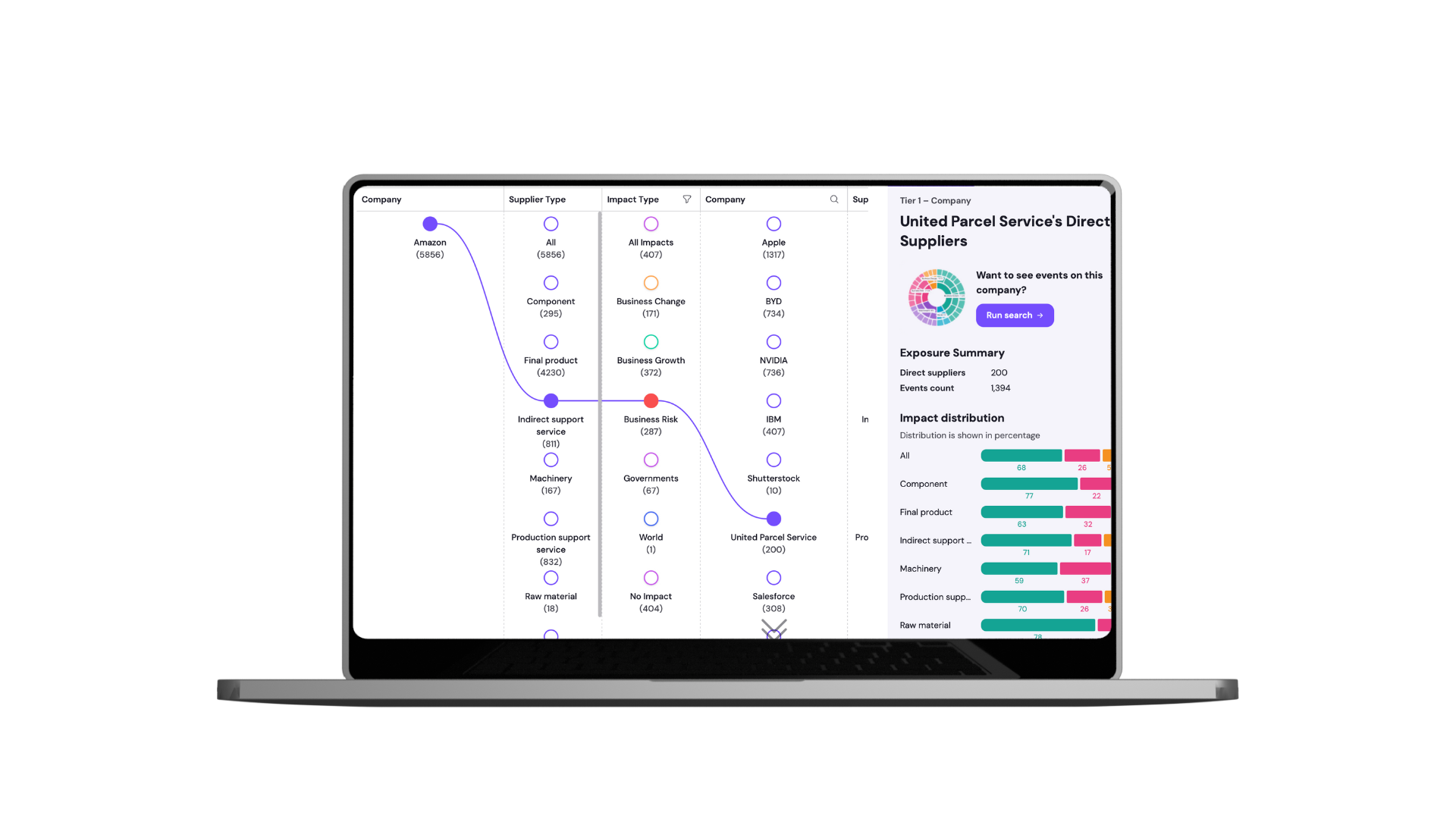
What you’ll see in the video:
- how to open Value Chain view
- how tiers and suppliers work
- how to spot risk signals quickly
Step-by-step: How Value Chain works in svEye
Step 1: Open search
- Start with a standard search in svEye.
- Value Chain always builds on an existing search.
Step 2: Select a company
- Choose from millions of companies in our database.
- Or type a specific company name to jump directly.
Step 3: Confirm your selection
- Make sure you’re analyzing the correct entity.
Step 4: Run the search
- Launch the search to generate results and context.
Step 5: Switch to Value Chain view
- In the results, select Value Chain.
- The visualization shows supplier relationships across tiers.
Step 6: Understand Tier 0
- Tier 0 represents your searched company.
- All supplier tiers branch out from this point.
Step 7: Select supplier types
- Choose which type of suppliers you want to analyze.
- The context panel on the right updates instantly with:
- event distribution
- supplier type breakdown
- where activity is happening
Step 8: Focus on Business Risk
- Looking for potential issues?
- Filter events under Business Risk to surface weak spots.
Step 9: Inspect individual suppliers
- Select any supplier in the chain.
- The number in brackets shows how many events svEye has detected.
Step 10: Review detailed context
- The context panel displays:
- specific events
- their distribution
- relative importance in your chain
Step 11: Launch a new search from Value Chain
- Interested in one supplier specifically?
- Start a new search directly from the Value Chain view.
Step 12: Isolate the path with the eye icon
- Use the eye icon to clean the view.
- Instantly see the direct path to a supplier and its tier position.
How to spot risk faster in Value Chain
- Look for suppliers with high event counts.
- Pay attention to lower tiers with concentrated risk.
- Use Business Risk filters to prioritize investigation.
Related tutorials

How to Use Company Health Score: Monitor Supplier Risk in Real-Time
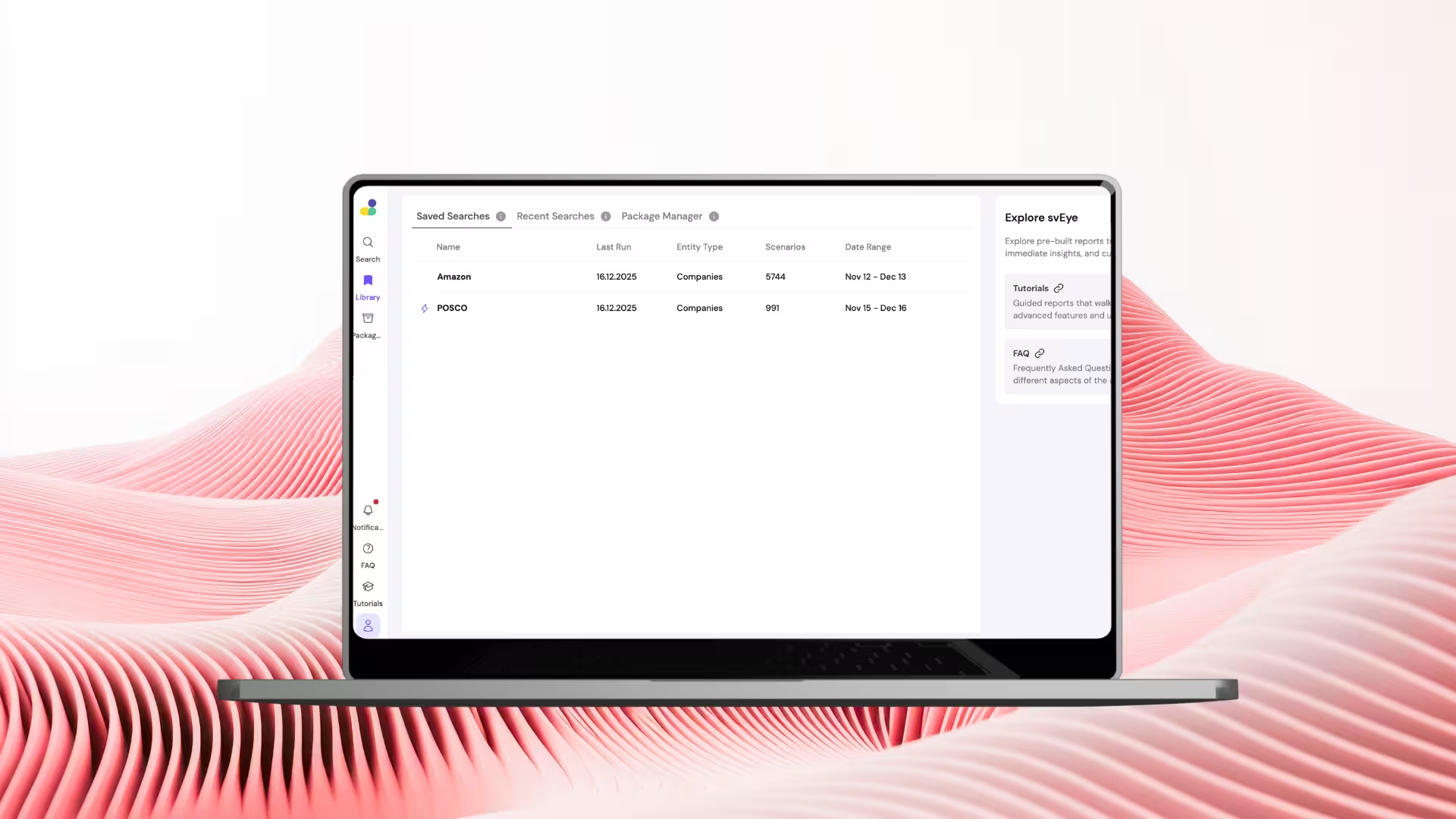
How to Use Library & Alerts in svEye: Monitor What Matters Automatically
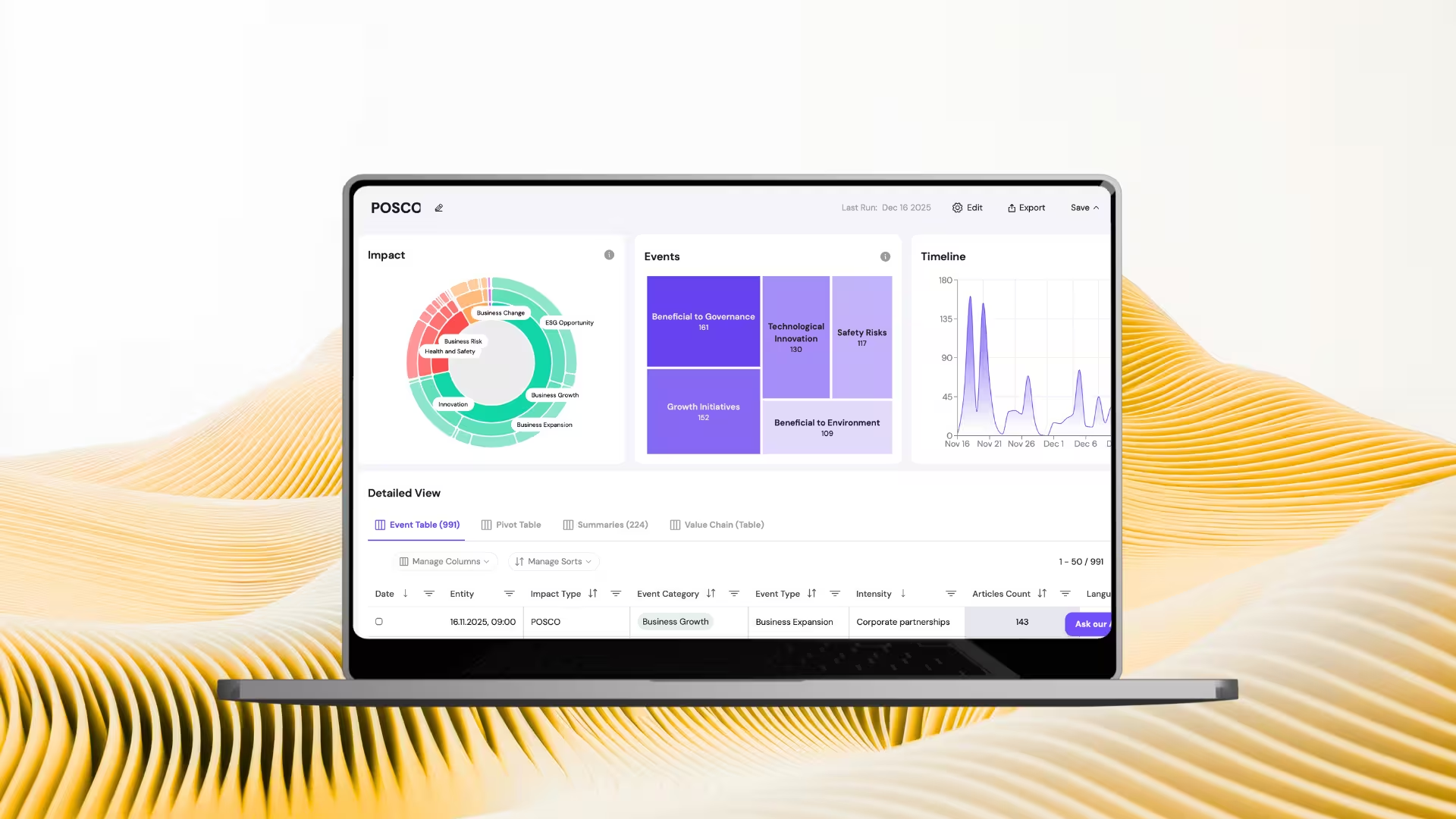
How to Read Results in svEye: Dashboards, Timelines, and Smart Summaries
See Everything. Focus on What Matters.
svEye™ filters the noise to uncover meaningful patterns and insights. Gain clarity, stay informed, and drive smarter decisions with a comprehensive overview.

