
How to Use Library & Alerts in svEye: Monitor What Matters Automatically
What this tutorial is about
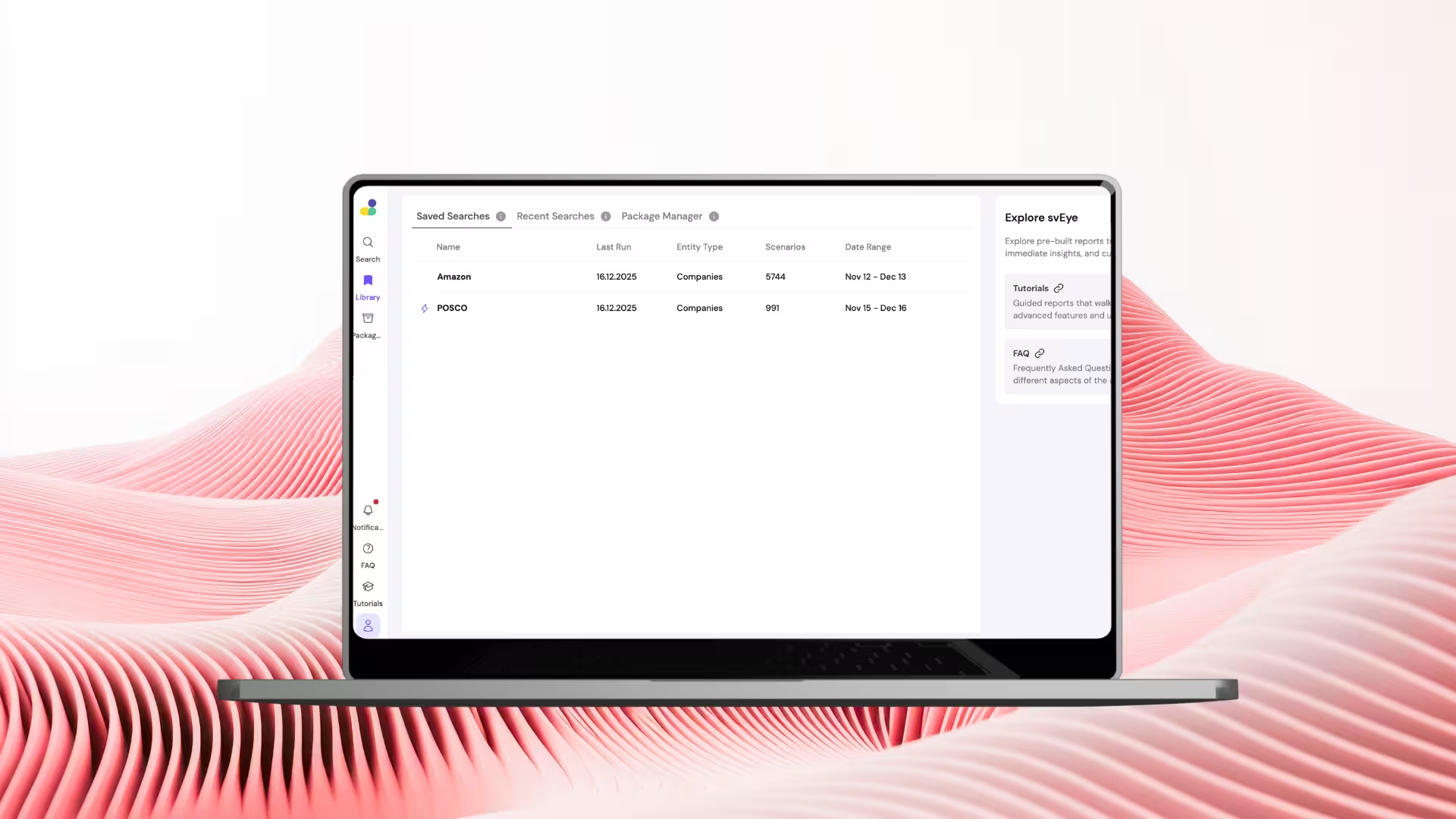
- Library is your personal control center in svEye.
- It stores your searches, alert settings, and search history.
- This tutorial shows how to turn one-time searches into continuous monitoring.
When to use Library & Alerts
Use Library & Alerts when you want to:
- monitor companies, risks, or topics over time
- receive updates without logging in daily
- keep your analysis organized and reusable
Typical users:
- risk & compliance teams
- supply chain and TPRM professionals
- analysts tracking ongoing topics
Video walkthrough⬈
What you’ll see in the video:
- how to access the Library
- how to manage saved searches
- how to set up alerts
Step-by-step: How Library & Alerts work
Step 1: Open the Library
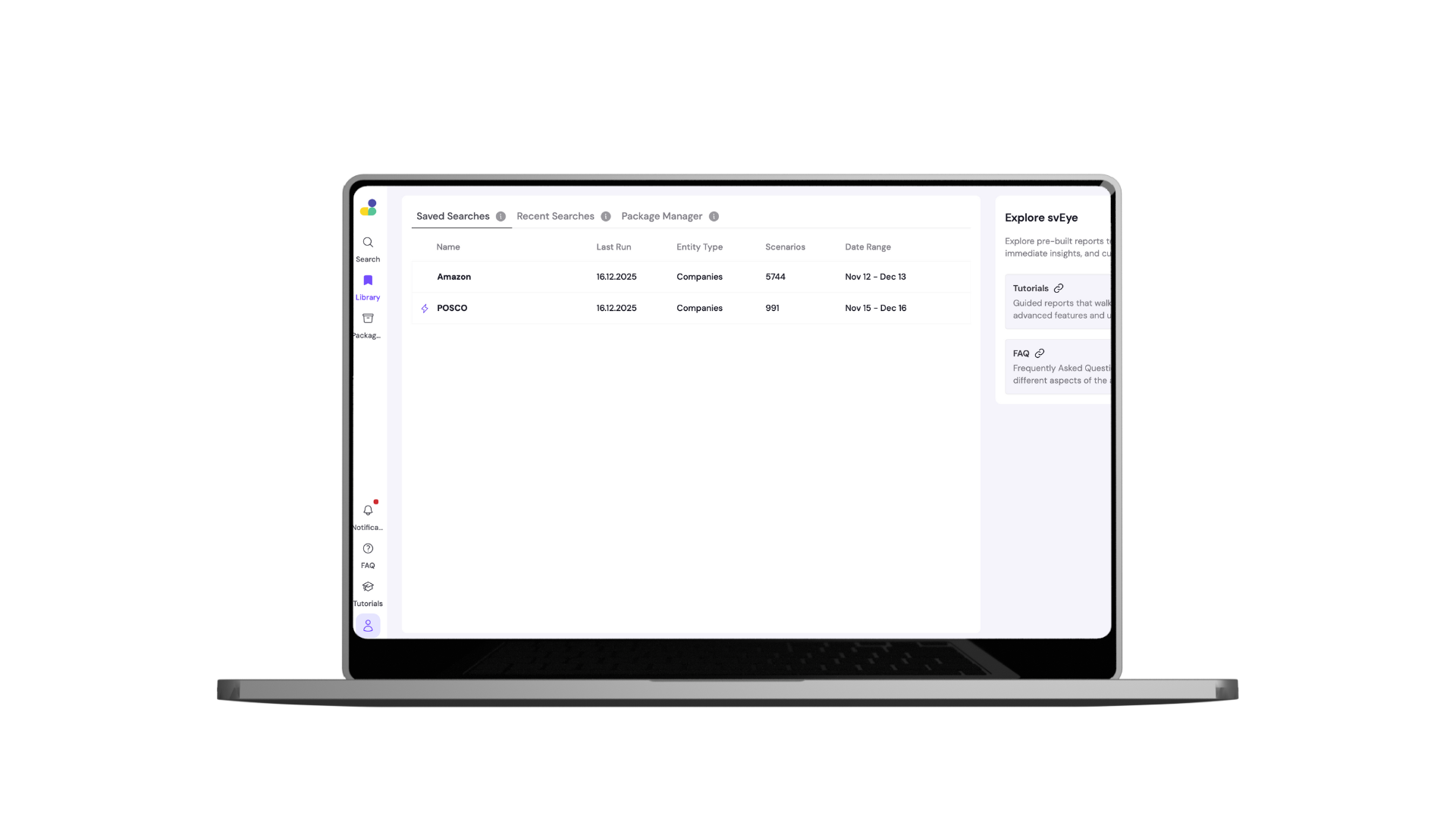
- Use the Library icon in the left-hand navigation.
- This opens your saved and recent searches.
Step 2: Preview recent searches
- Hover over the Library icon to quickly see your latest searches.
- Jump back without losing context.
Step 3: Access your saved searches
- All saved searches are stored in the Library.
- Think of it as your monitoring workspace.
Step 4: Manage your searches
- For each search, you can:
- open it
- rename it
- delete it
Step 5: Set up alerts
- Turn any saved search into an alert.
- Alerts keep watching even when you’re offline.
Step 6: Choose alert frequency
- Select daily or weekly delivery.
- Alerts are sent directly to your email.
Step 7: See alerts at a glance
- Alert icons show which searches are actively monitored.
- No need to open each one to check.
Step 8: Enable email notifications
- Set alerts to make sure you don’t miss critical updates.
- svEye monitors changes for you in the background.
Step 9: Save your settings
- Confirm your alert setup.
- svEye will start tracking immediately.
Step 10: Receive your first alert
- When new relevant events appear, you’ll get notified by email.
- No manual checking needed.
Step 11: Access search history
- The Library also stores your search history.
- This includes searches you didn’t save, in case you want to revisit them.
Best practices for monitoring
- Save only high-value searches as alerts.
- Use daily alerts for fast-moving risks.
- Use weekly alerts for strategic monitoring.
Related tutorials

How to Use Company Health Score: Monitor Supplier Risk in Real-Time

How to Analyze Value Chains in svEye: See Suppliers, Tiers, and Risk Exposure
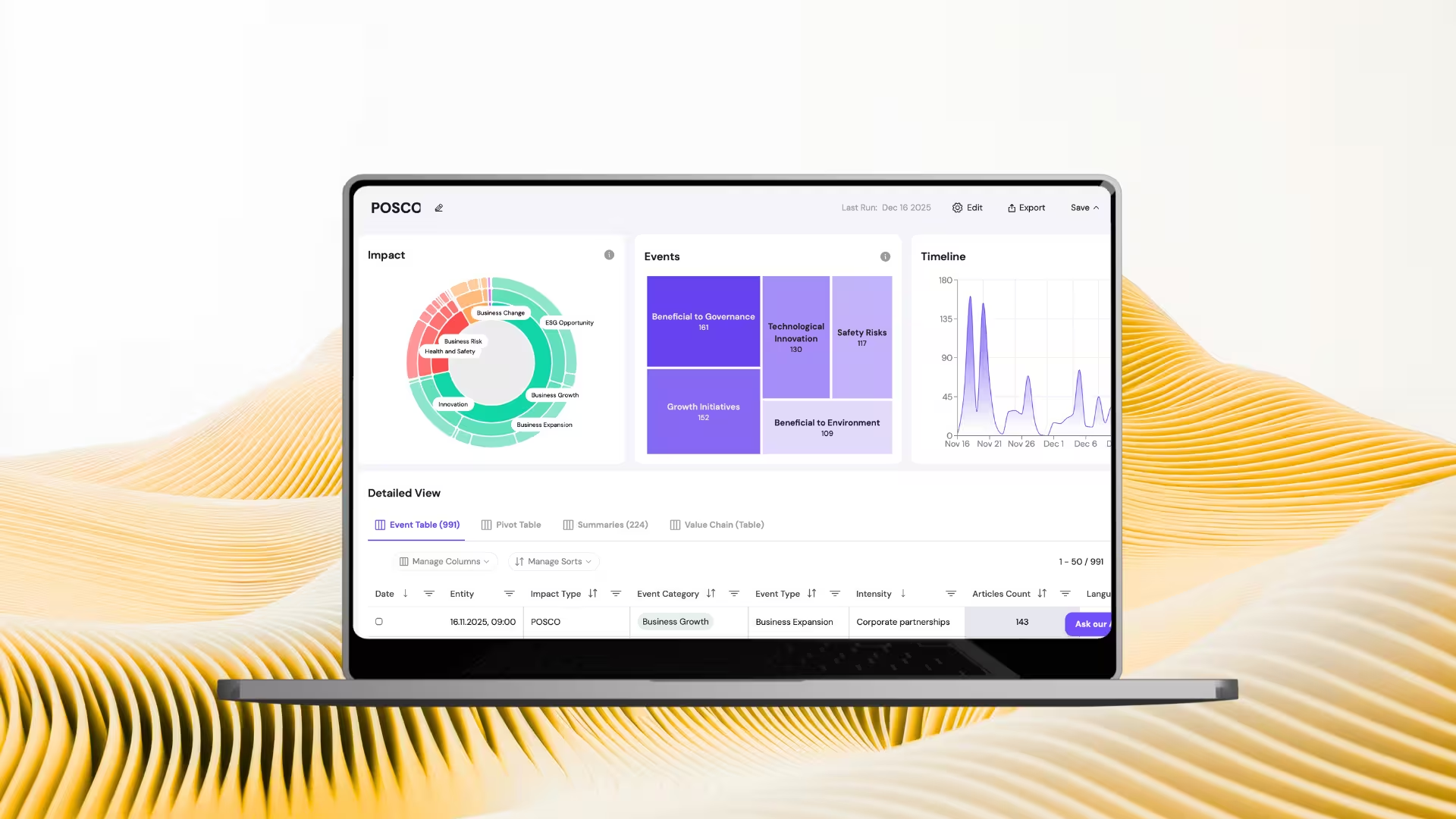
How to Read Results in svEye: Dashboards, Timelines, and Smart Summaries
See Everything. Focus on What Matters.
svEye™ filters the noise to uncover meaningful patterns and insights. Gain clarity, stay informed, and drive smarter decisions with a comprehensive overview.

