
How to Search in svEye: Find Companies, Entities, and Signals in One Place
What this tutorial is about
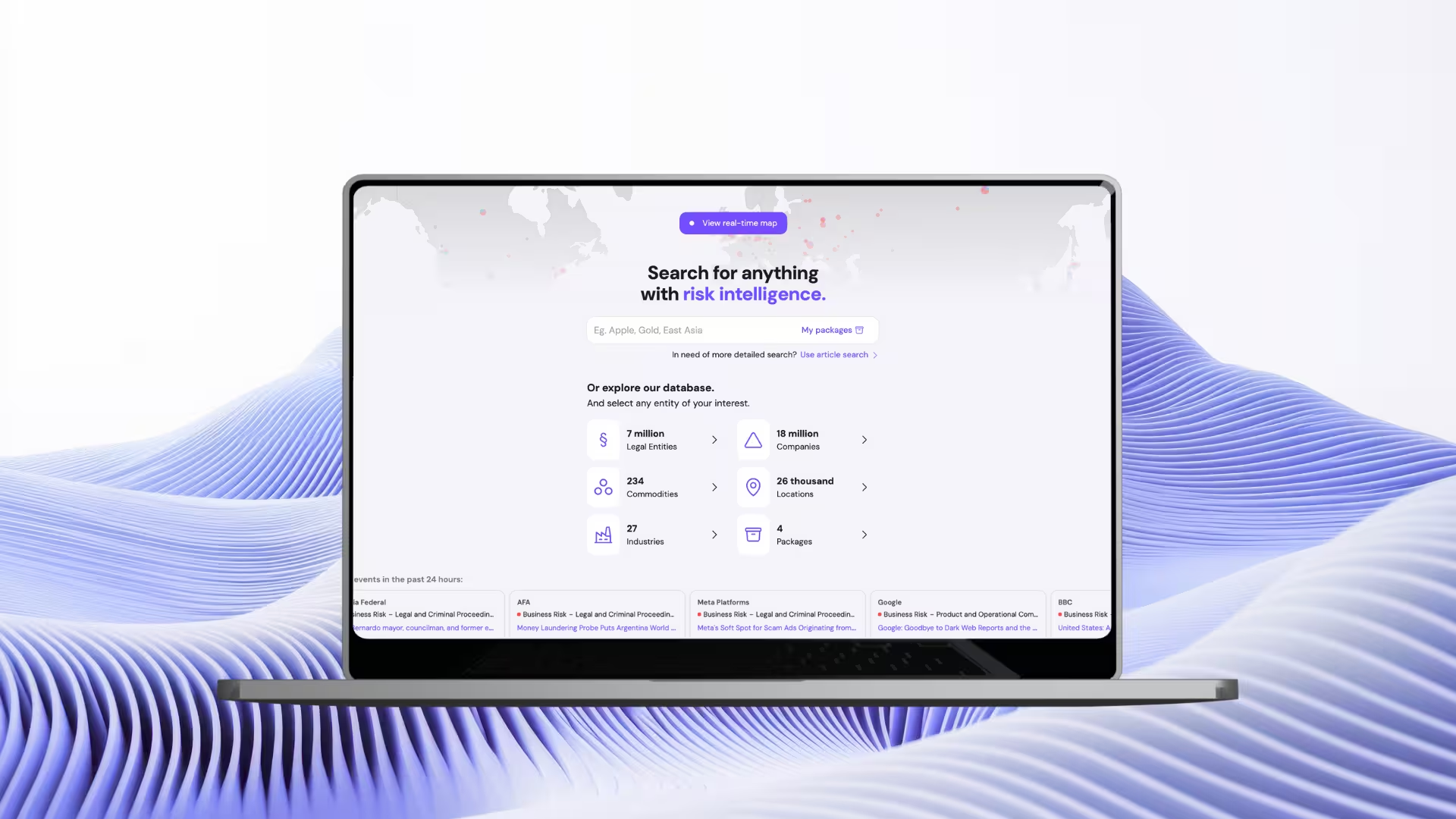
- Search is the starting point of everything in svEye.
- It lets you explore companies, legal entities, commodities, and more — from one input.
- This tutorial shows how to go from a simple query to structured results.
When to use Search in svEye
Use Search when you want to:
- quickly look up a company or legal entity
- explore suppliers, commodities, or markets
- start any deeper analysis (Article Search, Value Chain, alerts)
Typical users:
- risk & compliance teams
- supply chain analysts
- market & OSINT analysts
Video walkthrough⬈
What you’ll see in the video:
- how to start a search
- how entity types work
- how to run and adjust your search
Step-by-step: How Search works in svEye
Step 1: Start with one search
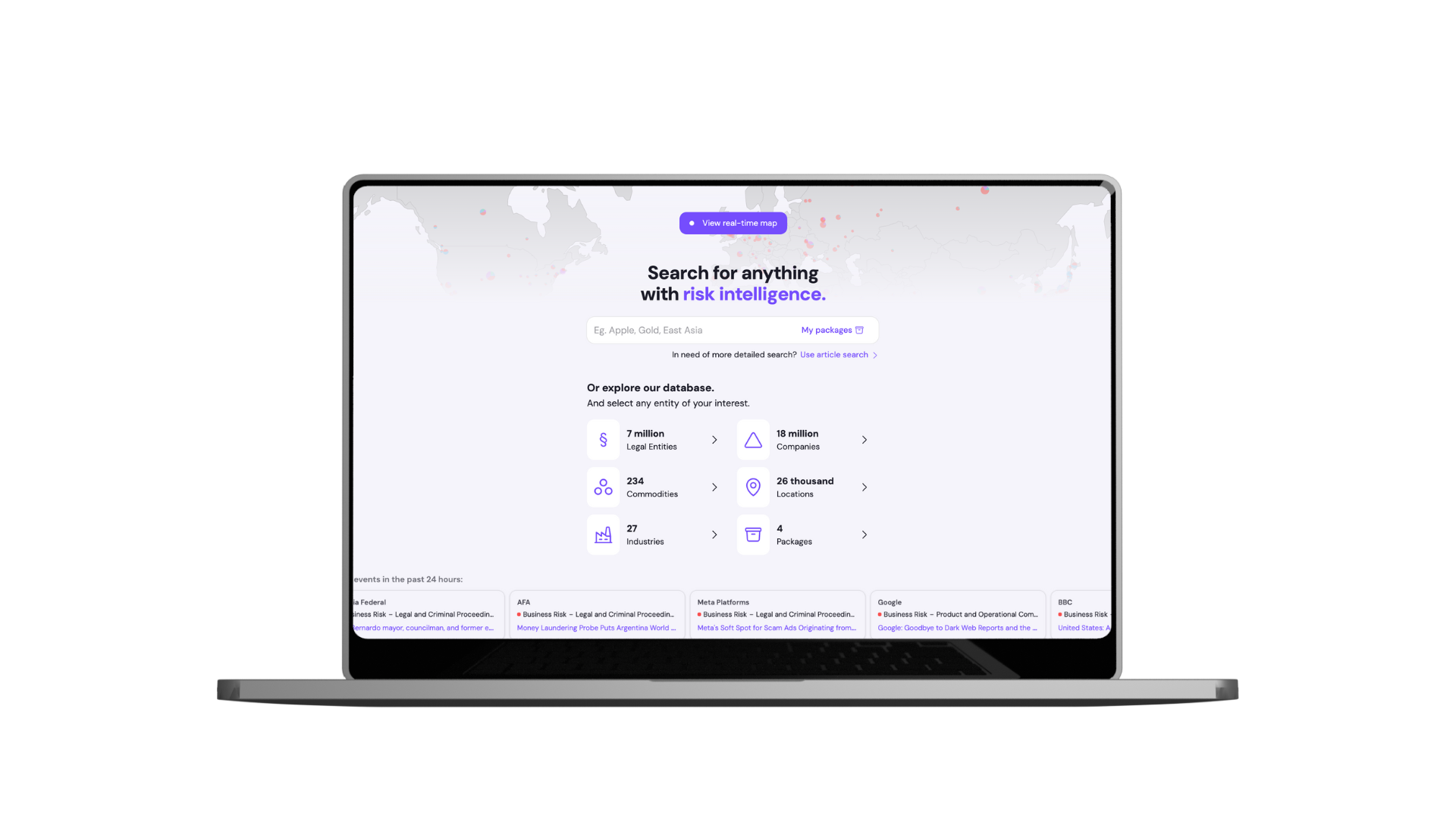
- Everything in svEye begins with a single search field.
- You can type directly if you know what you’re looking for.
- Or explore available entity types first.
Step 2: Explore entity types
- svEye works with millions of entities.
- To keep things clear, we surface the most relevant and largest ones first.
- Anything in the database can still be found via the search bar.
Step 3: Browse commodities
- Commodities are a key part of supply chain analysis.
- The list is continuously expanded based on demand.
- You can browse them or search directly.
Step 4: Select what you want to search
- Choose individual commodities or entities.
- Or select all to keep your search broad.
Step 5: Enter your entity
- Type what you’re looking for — for example, a company name.
- Autocomplete helps you narrow it down.
Step 6: Confirm the entity
- Select the exact company or entity from the list.
- This ensures accurate results.
Step 7: Run the search
- Launch the search to see results.
- Default time range is the past month.
- You can adjust the time range anytime.
What happens after search
- svEye takes you to the Results page.
- From here, you can:
- explore events and articles
- switch to Value Chain view
- refine or save your search
Best practices & tips
- Start broad, then narrow down later.
- Use entity selection to avoid noise.
- Adjust the time range to match your use case.
Related tutorials

How to Use Company Health Score: Monitor Supplier Risk in Real-Time
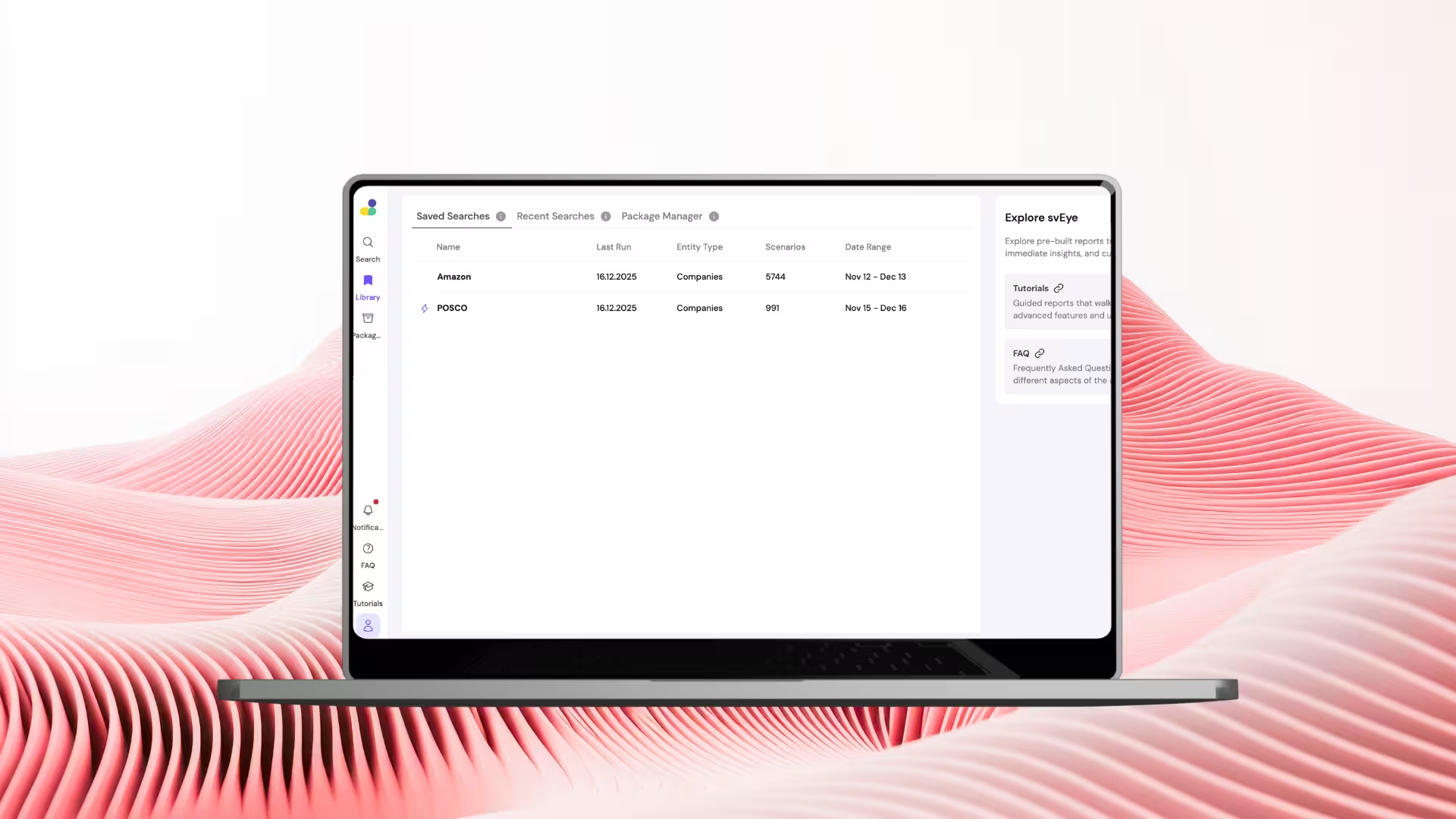
How to Use Library & Alerts in svEye: Monitor What Matters Automatically

How to Analyze Value Chains in svEye: See Suppliers, Tiers, and Risk Exposure
See Everything. Focus on What Matters.
svEye™ filters the noise to uncover meaningful patterns and insights. Gain clarity, stay informed, and drive smarter decisions with a comprehensive overview.

