
Getting Started with svEye: Account, Login and Security
This guide covers everything you need before your first search in svEye: creating an account, confirming your e-mail address, signing in, and securing your account.
Creating an account
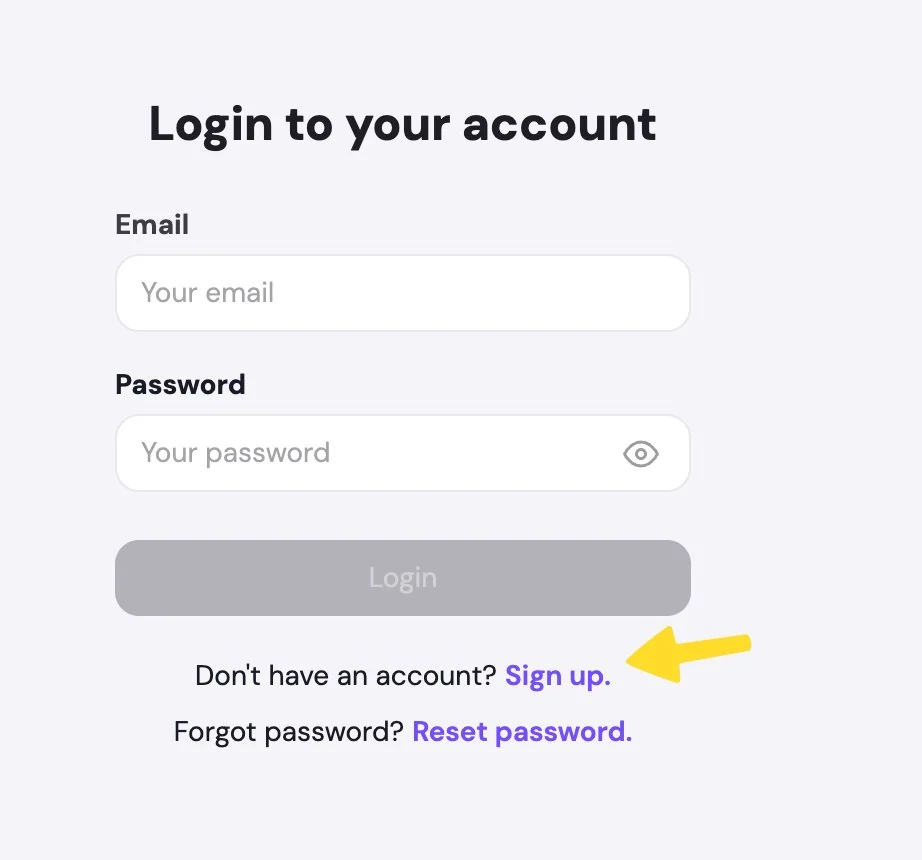
If you do not have an svEye account yet, open the login page and select Sign up. Every field on the form is mandatory.
Your password must contain:
- at least 12 characters
- at least one number
- at least one special character
- at least one capital letter
- at least one lowercase letter
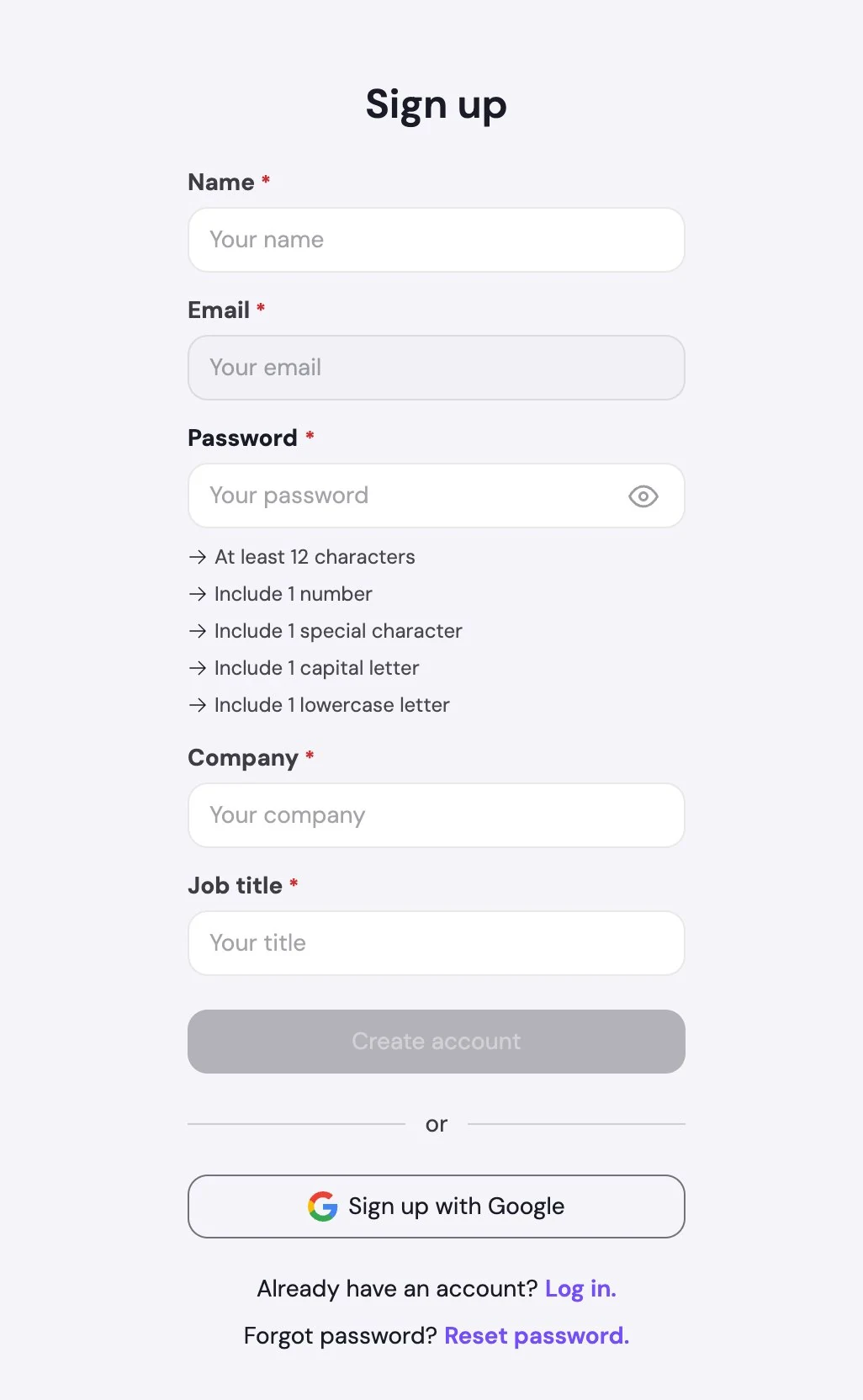
Why the button stays grey: Create account stays inactive until every mandatory field is filled and the password meets all five rules. The requirement list under the password field updates as you type, so you can see what is still missing.
Confirming your e-mail address
For security reasons, svEye checks that the address you registered with belongs to you. You receive a confirmation e-mail immediately after registration.
- Open the confirmation e-mail from svEye in your inbox.
- Select Confirm my e-mail. You are taken to svEye and your account is activated.
- Log in. Your credentials now work on the login page.
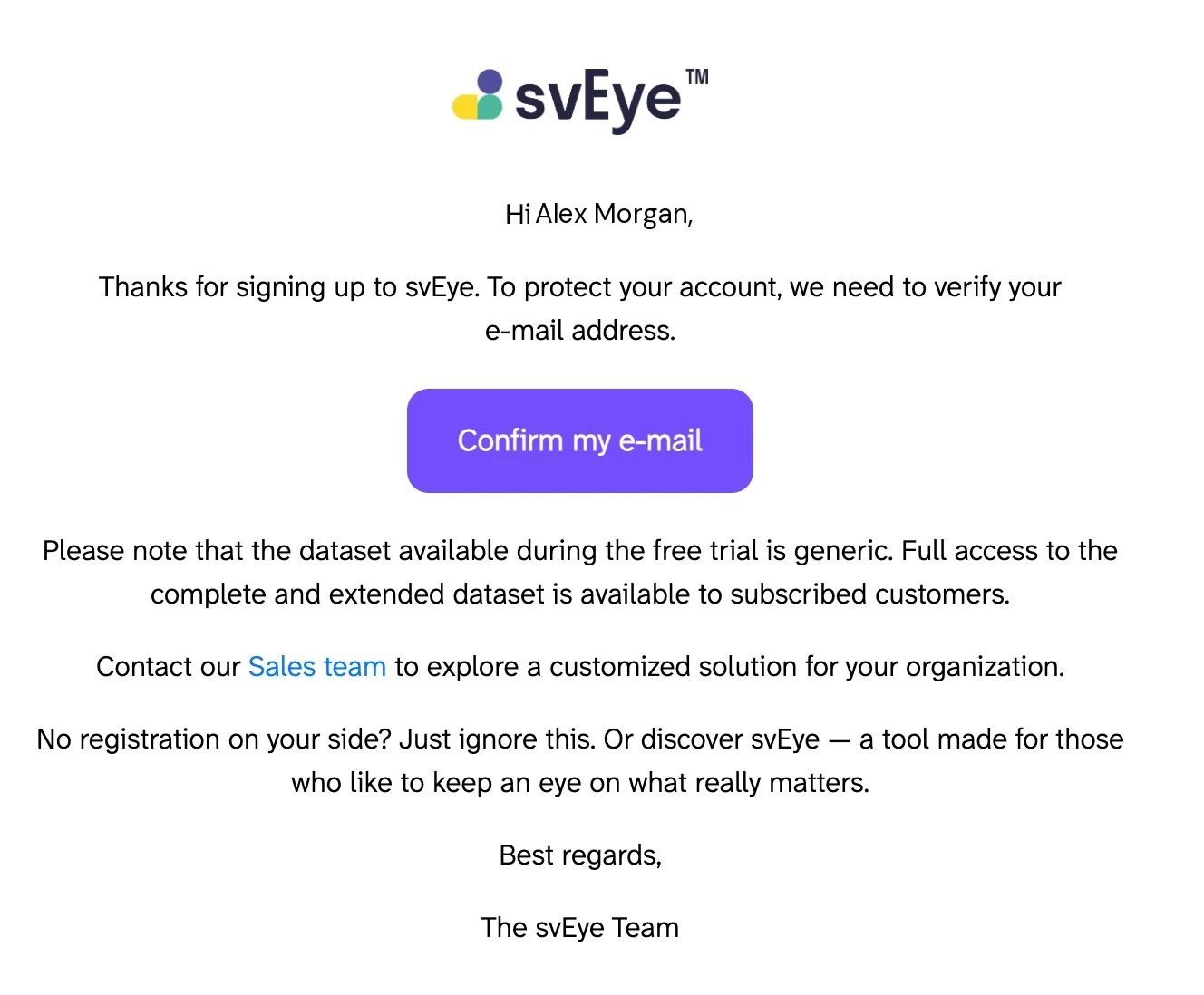
The confirmation link is valid for a limited period. If it has expired, request a new one.
If the message does not arrive: check your spam or quarantine folder, as corporate mail filters sometimes hold automated messages. If it still has not arrived, contact your administrator or svEye support at support@semantic-visions.com.
Logging in
Open the svEye login page, enter the e-mail address and password you registered with, and select Login. The eye icon at the right of the password field lets you check what you typed before you submit.
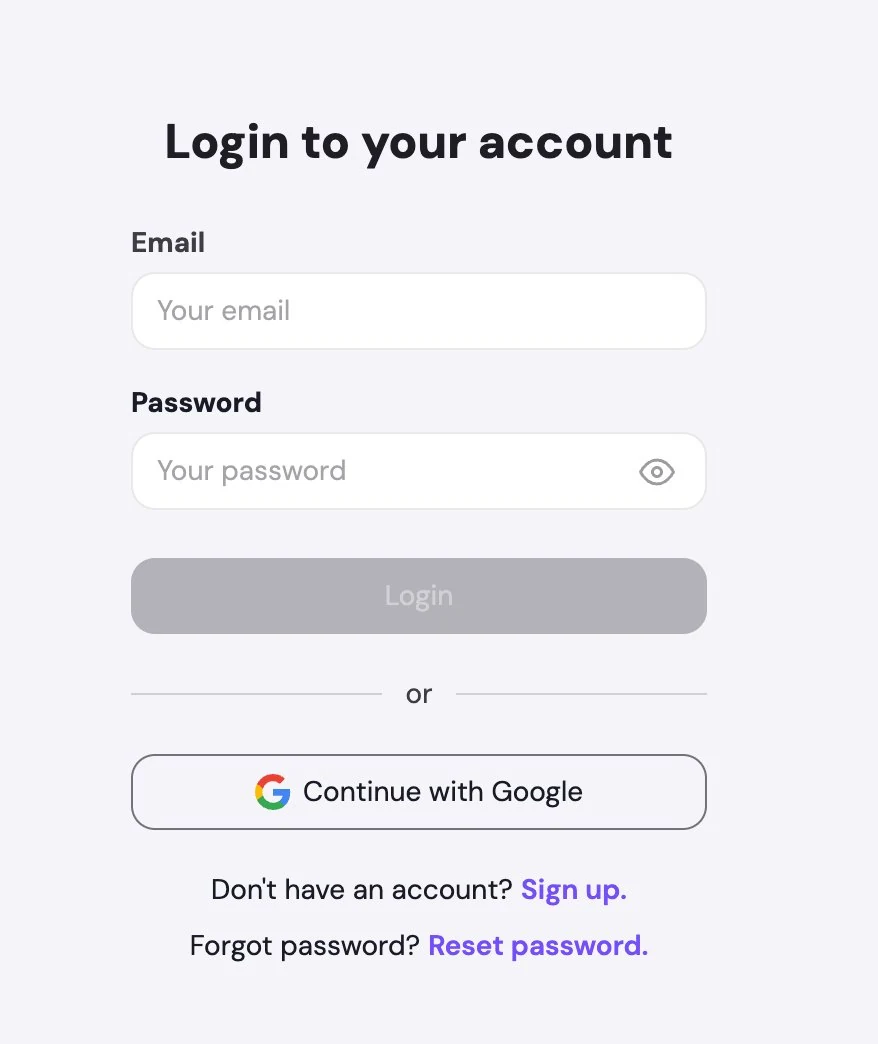
You can also select Continue with Google and sign in with your Google work account. Authentication is then handled entirely by Google, and you do not need a separate svEye password.
Single sign-on for enterprise customers
svEye can be integrated with your organisation's identity provider, so you sign in with your existing corporate credentials. Where single sign-on is in place:
- You do not create an svEye account yourself. Your organisation's administrator grants access and your account is provisioned centrally.
- You do not have a separate svEye password, so the password reset flow below does not apply to you.
If you are not sure whether your organisation uses single sign-on, your administrator can confirm.
Resetting your password
If you have forgotten your password, select Reset password on the login screen. Enter the e-mail address associated with your account and select Send reset link. Follow the link in the message to set a new password. It must meet the same five rules as when you created your account.
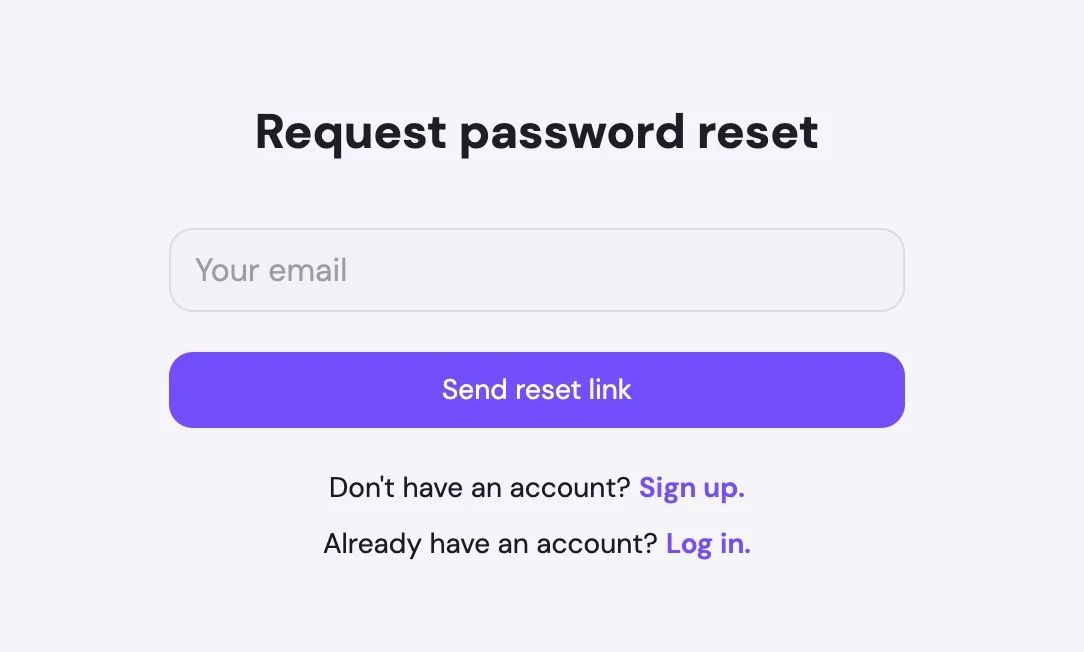
This does not apply to single sign-on users or to users who sign in with Google.
Two-factor authentication
Two-factor authentication adds a second verification step to your login, so knowing your password alone is not enough to access your account.
- Scan the QR code with an authenticator app on your phone.
- Enter the generated code to confirm the pairing.
- From now on, svEye asks for a code each time you log in.
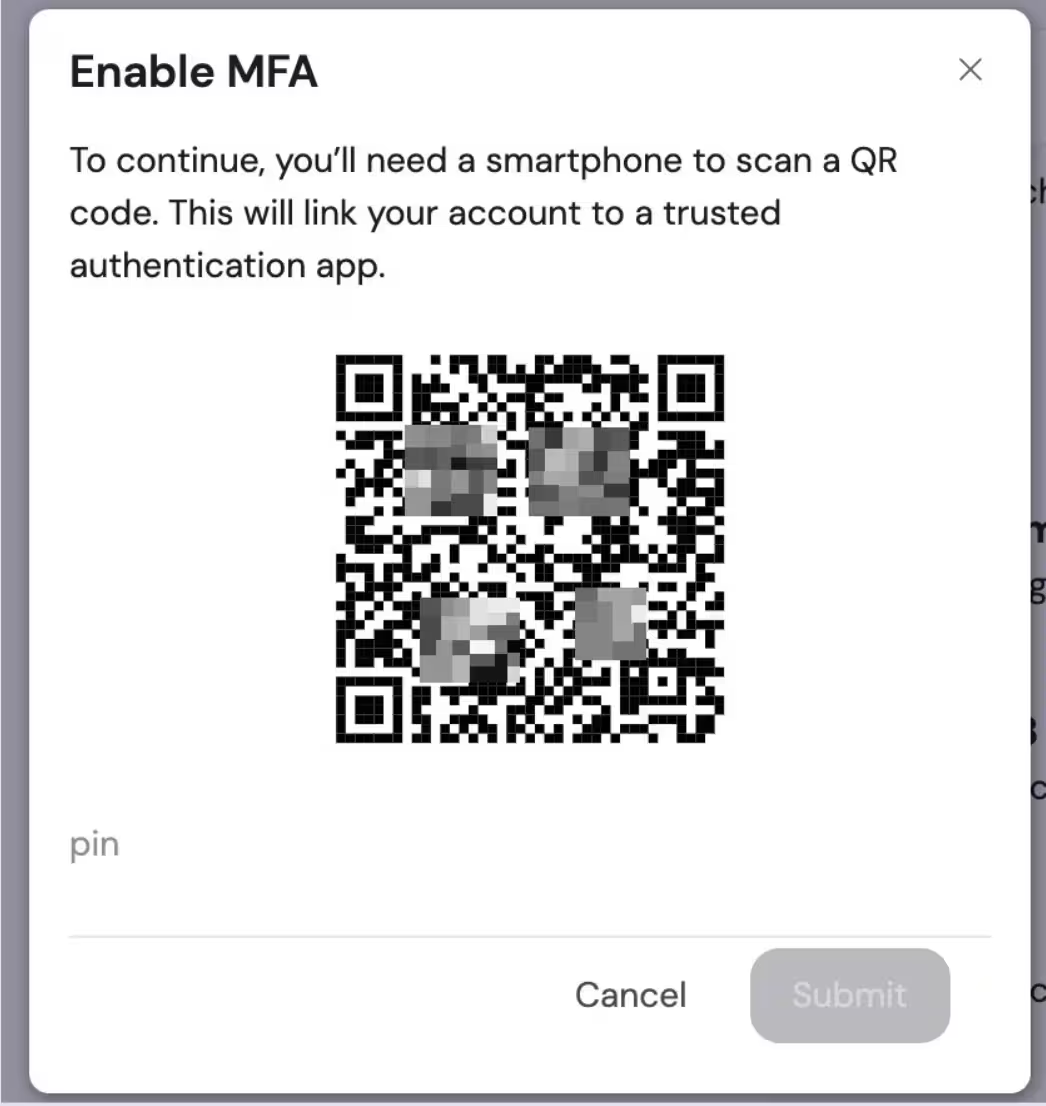
Two-factor authentication is optional. You can skip it at your first login, and turn it on or off at any time in Account Management.
A note on your data: self-service and trial accounts work with svEye's generic dataset. For contracted customers, Semantic Visions curates the data around the entities that matter to that organisation. Monitored companies and multi-tier supply chain entities are built, cross-checked and validated manually before delivery.
Next in this series
Related tutorials
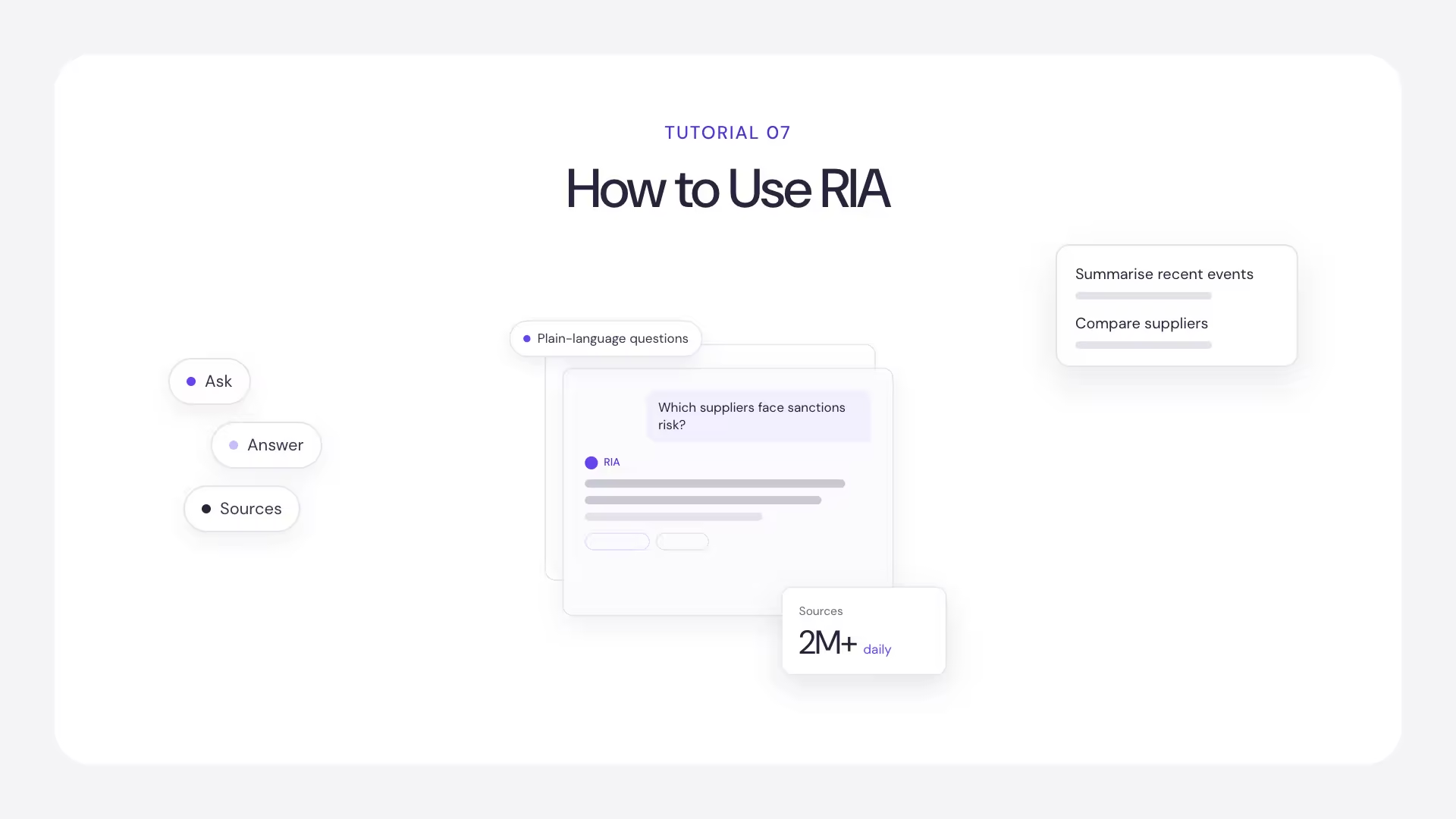
How to Use RIA, the svEye Risk Intelligence Assistant
How to Analyze Value Chains in svEye: Suppliers, Tiers and Risk Exposure
How to Save, Share, Export and Set Alerts in svEye
See Everything. Focus on What Matters.
svEye™ filters the noise to uncover meaningful patterns and insights. Gain clarity, stay informed, and drive smarter decisions with a comprehensive overview.

