


Article Search: How Analysts Actually Work (Part 2)
In the first article of this series, we explored the fundamentals: building queries using basic keywords, enriched with Named Entity Recognition (NER) and high-level categories. While basic filtering provides the necessary breadth, advanced methods provide the precision high-level analysts need to eliminate "noise" and isolate true "signals."
In this guide, we dive into the 'pro' toolkit, mastering the techniques required to target specific document segments, filter by metadata attributes, and manipulate complex queries.
Beyond query construction, we will examine how to strategically navigate your results to transform raw data into actionable insights. By the end of this article, you will be equipped to leverage Article Search not merely as a search bar, but as a comprehensive intelligence engine.
The Engine Under the Hood: svEye Article Search
As a brief refresher, Article Search is the primary discovery module of the svEye engine. While our Insight Search module focuses on structured events (detecting what happened to whom), Article Search allows analysts to perform deep-dive forensics. It scans over two million articles daily across 12 languages, giving you the power to find the "needle in the haystack" using sophisticated combinations of keywords, NER entities, and categories.
3 Steps to Master Professional Query Building
In Part 1, we covered five steps to build a foundational query. Now, we move into targeted precision. This requires a shift toward manual query construction. Don't worry, the syntax is logical and designed for speed.
Pro Tip: You can always find a quick-reference list of these commands within the Article Search module under the Help & Tutorials button.
1. Word Proximity Search: Finding Contextual Links
Sometimes, two keywords appearing in the same article isn't enough; they need to be related to each other. Proximity search looks for keywords within a specified maximum distance. This is vital for cases like uncovering mergers, product defects, or specific individuals linked to events.
The Syntax: Wrap your keywords in quotation marks, followed by a tilde (~) and a number representing the maximum word distance. For example:
"supplier problems"~3
Result: Finds all articles with the two words separated by max. three other words, like "problems with our primary supplier."
This search is case-insensitive and ignores text structure (searches the given proximity across all parts of the text). This command is not limited to only two keywords proximity, it can be used to search for multiple keywords.
Note: While it is powerful, keep in mind that proximity doesn't always equal a positive correlation. Always verify the sentiment within the results.
2. Targeted Segment Searching
Article Search allows you to "split" an article and search only specific parts: the Title, the Summary, or the Body (Text Content). This is a game-changer for PR managers monitoring headlines or analysts looking for "Force Majeure" clauses buried in the fine print.
To refine your search further, the platform enables you to narrow down your segment searching by adding three specific requirements: case sensitivity (essential for distinguishing "who," the pronoun, from "WHO," the World Health Organization), searching keywords with special characters, or applying the proximity search we discussed earlier.
To use targeted segment search to its full potential, follow this two-step decision-making process:
Step 1: Define the Search Area
First, decide which specific part of the article most likely contains the intelligence you need. This choice determines your base command:
Step 2: Define the Precision Level
Next, consider how exact your search needs to be. Are you looking for a general phrase, a case-sensitive acronym, a string with special characters, or words in close proximity?
By combining your choice from Step 1 with your preferences in Step 2, you can create 12 different types of high-precision commands:
As you can see, the command structure is highly logical. It always initiates with the segment name (title, summary, or text_content) and extends based on your required specification (.case, .exact, or ~number).
Pro Tip: Understanding "Exact" Precision
The Exact Phrase search is extremely literal. It returns only results where the phrase and its special characters are an identical match. This includes characters that "stick" to words without spaces, such as brackets, commas, or periods. For example, searching text_content.exact:"Section 4.2" is so precise it will exclude variations like Section 4.2. (with a trailing period) or (Section 4.2) (within parentheses).
3. Filtering by Document Attributes: Beyond the Keywords
In professional intelligence, where a story originates is often as significant as what it says. While keywords define the topic, document attributes allow you to filter for source authority, regional relevance, and official narratives. By utilizing an article’s metadata—such as the URL, source, or top-level domain—you can isolate specific global regions (e.g., .cn for China or .de for Germany) and focus on the "signals" that matter most.
This is particularly useful for monitoring state-controlled media, official government announcements (via .gov domains), or a competitor’s newsroom to be the first to identify official product launches.
To search by these attributes, use the following commands:
Real-world Application: From Query to Intelligence
Now we reach the most critical stage: combining these tools to extract actionable insights. The goal is no longer just "searching"—it is "discovery."
Objective:
Detect potential disruptions in the Rare Earth element supply chain originating from Chinese state media or official announcements, specifically focusing on "export controls."
The Professional Query:
title:("Rare Earth" OR "Lithium") AND summary:("export control" OR "restriction")~5 AND domain:*.cn
Why This Query Provides a "Signal":
- title:("Rare Earth" OR "Lithium"): Anchors the search to specific critical materials in the headline, ensuring the article's primary focus.
- summary:("export control" OR "restriction")~5: Uses proximity to find these terms in the lead paragraph.
Note: While "restriction" is a single keyword, the proximity operator ensures "export control" is treated as a tight phrase. - domain:*.cn: Eliminates global speculation and focuses exclusively on domestic Chinese sources and state narratives.
In a recent test of this query over a 6-month window across all 12 supported languages you can define in filters, the engine isolated 15 high-signal articles.
Working with the Results
Article Search provides three distinct ways to interact with your data: Articles, Events, and Summaries. Understanding the difference between these "layers" of intelligence is the key to moving from simply "reading news" to "performing analysis." Here is how an analyst would process the results.
1. The Article View: Foundational Forensic Data
The Article result is the primary output of the module. If your keywords match the text, the article is retrieved. In our Rare Earth scenario, the search yielded 15 articles—a focused dataset ideal for deep-dive verification.
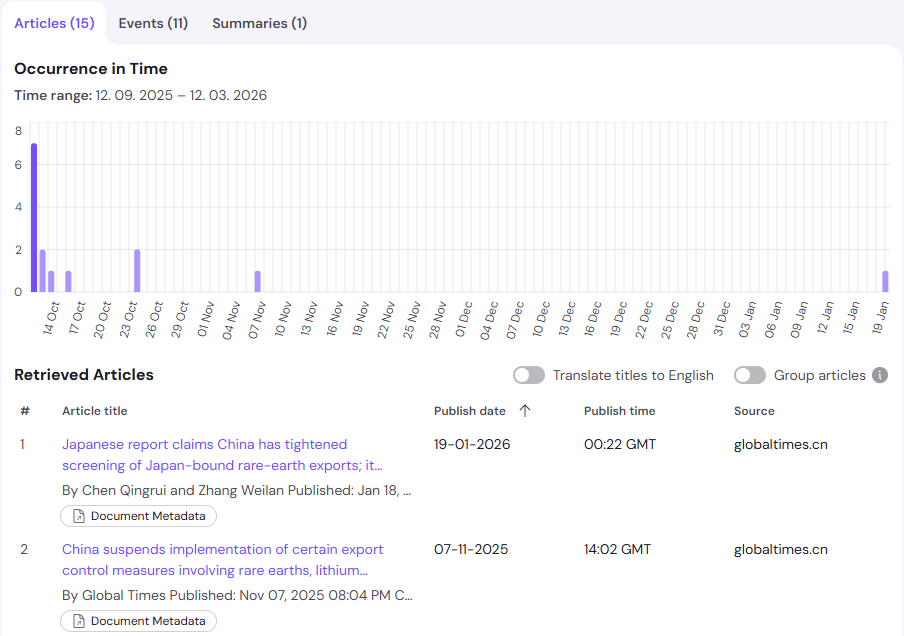
- Analyzing Temporal Peaks: The results graph may reveal "peaks"—dates where the volume of reporting significantly increases. In our search, October 12 stands out with seven articles. For an analyst, a peak is a critical signal—a “smoke signal” that often indicates a major, time-specific news event.
Note: You can filter articles from a single date by simply clicking on the graph.
- The Logic of Grouping: To save time, use the Group Articles feature. This collapses similar reports into a single representative text. Then you can instantly see if those seven articles are unique reports or the same state-media bulletin amplified across different outlets. This helps you gauge the "weight" of a narrative without redundant reading.
2. The Events View: The Structured Insight Layer
While Articles are based on keywords, Events are generated by the system’s extraction engine. An event is recorded when the platform identifies in an article a specific NER Entity and an Event Type tight to that entity, and combines them with a publishing Date.
Important Note: Because Events are based on extracted data, they may yield a different scope of information than your initial keyword query.
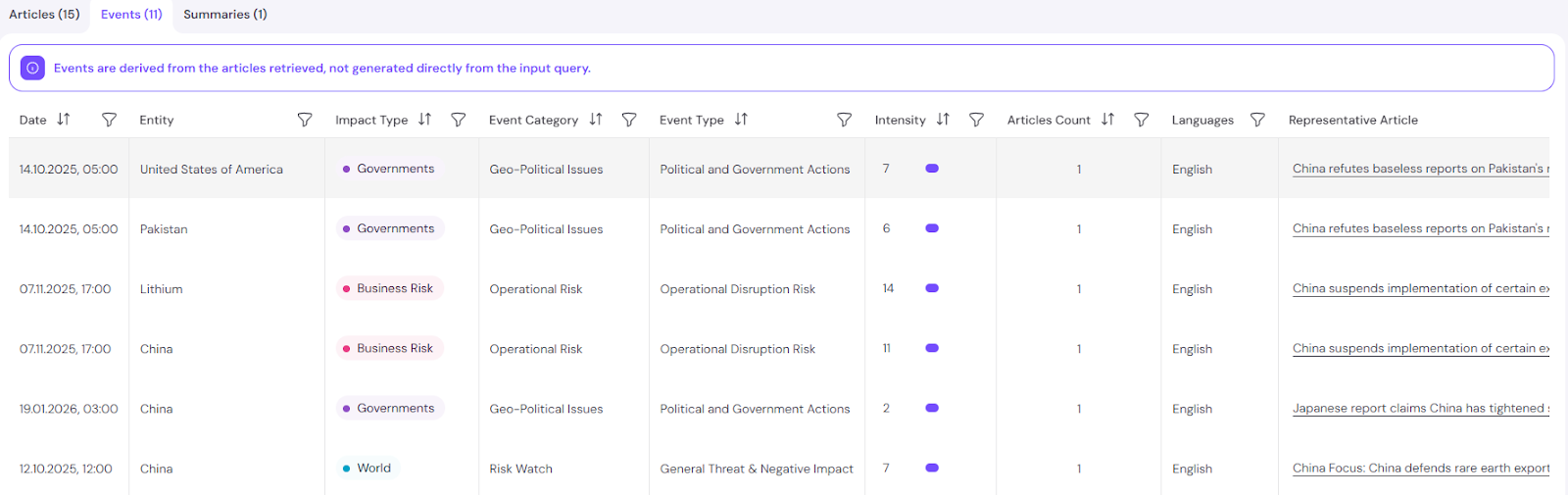
- The Benefit of Contextual Surplus: Because an article might cover multiple topics, the Events view may show data beyond your initial query—such as related trade meetings or secondary economic impacts. This provides a broader risk landscape than a keyword search alone.
- Filtering for Precision: To isolate the "signal," use the event (event tree) and entity filters. In our real-world case, we can navigate to "Political and Government Actions" and filter by the entity "China." This process strips away general commentary and leaves us with the three specific articles containing the actual regulatory actions we set out to find.
3. The Summaries View: Mapping the Event Life Cycle
While an Event represents a point in time, a Summary captures the entire narrative arc. Just like Events it’s based on structured data extraction (NER Entity, Event Type) but monitors the same event from its start to its end.
Important Note: Just like Events, Summaries are extracted results and may yield a different scope of information than your initial keyword query.
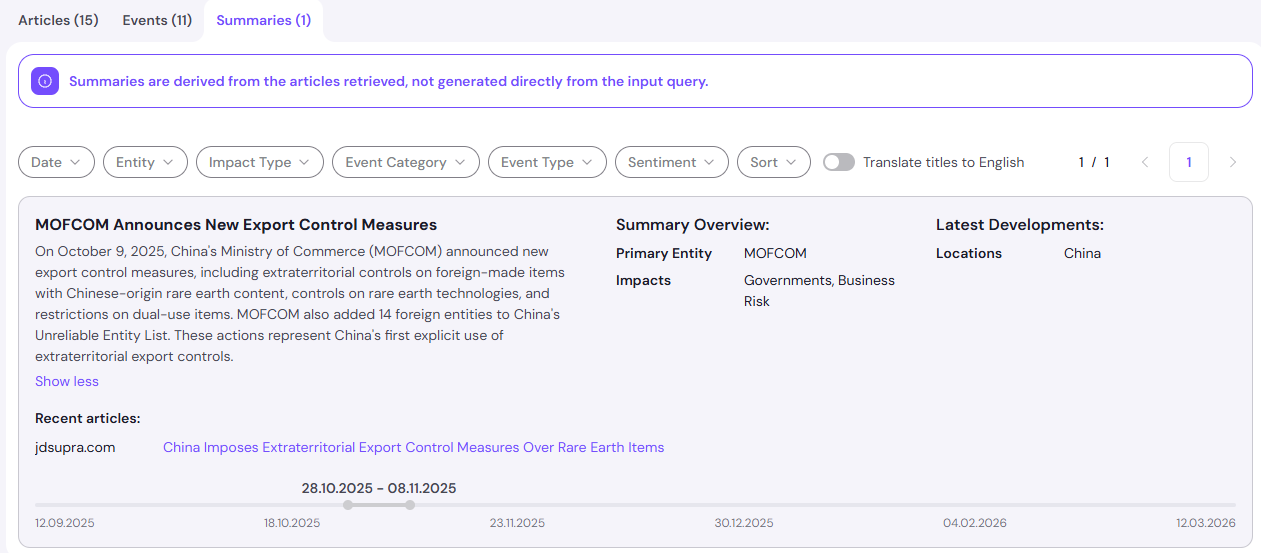
- Tracking Narrative Evolution: A Summary aggregates all related mentions of a specific event over time. In our test, the system identified one recurring narrative thread active from Oct 28 to Nov 8.
- Efficiency in Reporting: Instead of manually correlating 15 articles to see how the "export control" story developed, the Summary provides a condensed overview. It allows an analyst to quickly grasp the outcome of a situation and provides a direct link to the most recent authoritative source. Lots of additional filters help you to focus on your needs.
Which Result Type Should You Use?
In Article Search, the Articles themselves are the foundational truth. If your query returns just a couple of them, you don’t have to dive into Events or Summaries. However, in most cases you will have to handle dozens or hundreds of articles. Then you will have to use all three layers to "triangulate" the signal. Until you get the handle of it, here’s a tip, a "Top-Down" workflow, for you to start with:
Note that this is not a one way drive. You can repeat some steps or skip others as you need. By moving between these result layers (Article, Event, Summary), you ensure that no "signal" is lost—whether it’s a globally recognized event or a subtle, niche development.
Taking the Wheel: Your Search, Your Logic
Ultimately, Article Search is built for analysts who need to take the wheel. While automated systems have their place, complex investigations often require a meticulous, hands-on approach to uncover the niche signals that broader filters might overlook. Whether you are conducting forensic due diligence or tracking a highly specific geopolitical disruption, this module puts you in the driver’s seat, allowing you to call the shots on how you discover and interpret global data.
For those seeking a more guided experience, our Insight Search module remains a powerful alternative. It provides immediate access to more than fifty predefined event types and 25 million NER entities, further enhanced by an AI Assistant that allows you to interrogate your filtered data using natural language.
Coming Soon: Report Studio
We are also excited to offer a glimpse into the future of svEye. In the coming months, we will be launching Report Studio—a revolutionary tool designed to bridge the gap between discovery and delivery.
Report Studio will allow you to take your filtered articles and generate professional reports based on your own natural language prompts. By automating the synthesis of your results, it will drastically shorten the time required to move from raw data to a finished briefing.
Stay tuned for our official release article when Report Studio goes live. Until then, happy searching!
Appendix: svEye Search Syntax Overview
This quick start guide is designed to be a "cheat sheet" for your daily workflow. It consolidates the foundational logic from Part 1 with the advanced precision tools covered in this article.
1. Core Operators & Logic
2. Targeted Segment Searching
Combine these with modifiers like .case or .exact for higher precision.
3. Precision Modifiers
4. Metadata & Smart Filters (NER/Categories)
Access Premium Insights

.avif)
.avif)
See Everything. Focus on What Matters.
svEye™ filters the noise to uncover meaningful patterns and insights. Gain clarity, stay informed, and drive smarter decisions with a comprehensive overview.

