

.png)
Your beginner’s guide to svEye’s article search (Part 1)
In a business landscape overwhelmed by information, one of the most valuable assets is the ability to cut through the noise. We all know the importance of working efficiently to identify what truly matters, but with millions of data points just a click away, doing this without the right technology is impossible.
This is where svEye comes in.
This article, the first in a two-part series, dives into a powerful new module that puts you in control: the Article Search. By using simple operators, smart filters, and specific entities, you can pinpoint exactly what you need from Semantic Visions' vast archive. And don't worry, it is much easier than you might think.
About svEye
svEye by Semantic Visions is a cutting-edge market intelligence platform designed to give you a clear view of global risks and opportunities as they happen. Acting as a 24/7 radar for your business, it scans millions of vetted sources across a dozen languages to track over 10 million companies and commodities, using advanced AI to filter out the noise and deliver only the critical insights you need.
The platform’s basic module, Insight Search, is perfect for broad understanding. It tells you what is happening, where it is happening, and which company or industry is affected. It creates smart summaries, offers supply chain tables, and even provides an AI assistant to answer your questions in natural language.
But sometimes, you need to dig deeper. Sometimes you need to filter the noise on your own terms, scan for specific coverage, use more detailed filters, or investigate niche keywords relevant only to your business. That is why Semantic Visions built Article Search, a robust tool that lets you take the wheel.
Here is how you can use it to get results that will make you look like a seasoned intelligence analyst.
How to become an Analyst in 5 steps
As the name suggests, the Article Search tool gives you direct access to the "bone" of the Semantic Visions dataset: millions of source articles collected over the last ten years across twelve languages.
The true strength of this tool lies in its ability to combine two distinct search methods for maximum precision:
- Keywords: Just like a standard Google search, this allows you to look for specific words or phrases appearing anywhere in the text.
- Smart Filters: This is where svEye goes beyond simple keyword matching. By leveraging Named Entity Recognition (NER), the system understands context—distinguishing, for example, between a company and a person with the same name. You can filter results by specific entities (companies, people, locations) and a hierarchy of categories (like politics, business, or health).
It might sound technical, but building a query in svEye is designed to be intuitive. Here is your manual for turning a broad topic into precise intelligence.
1. Start with the basics
Navigate to the Article Search tab in your svEye dashboard. Think of this as your command center.
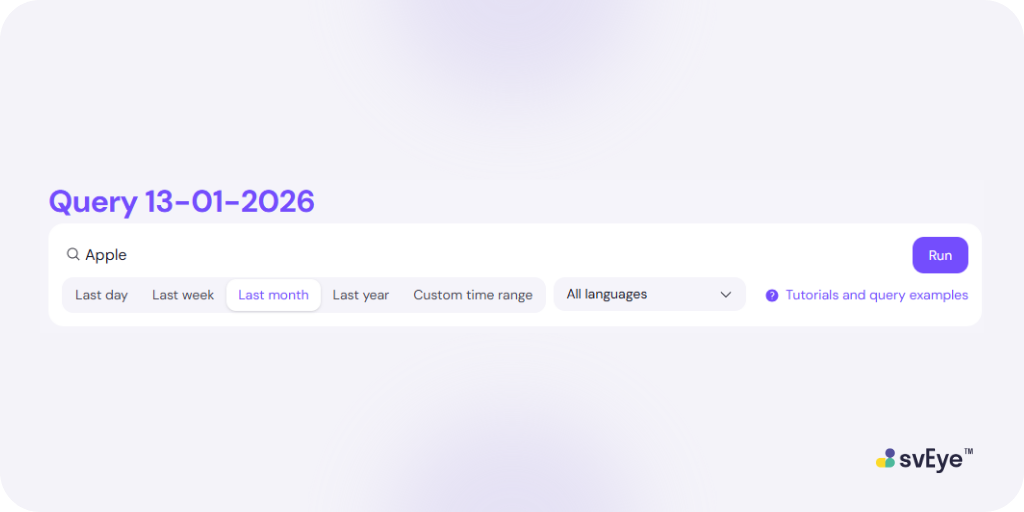
Begin by typing your core interest, whether it is a company name, a broad topic like "semiconductors," or a specific person. Select languages and time range and hit the “Run” button. This way you initiate a keyword search.
Example: Let’s say you want to track news about Apple. You start by typing the keyword "Apple" and hitting Run.
From now on, the system will act as a guide, instantly suggesting relevant Entities (see step 2) and Categories (see step 3) to help you refine your search.
2. Refine with Named Entity Recognition (NER)
This is where the platform’s intelligence shines. Instead of drowning in results containing the word "apple" (which could include recipes or orchard news), you can select the precise entity you need.
Check the NER Entities box. You can pick from the suggested list or type directly to find exactly what you are looking for.
Example: You select the entity "Apple" (the company). Instantly, thousands of irrelevant results about fruit markets are eliminated.
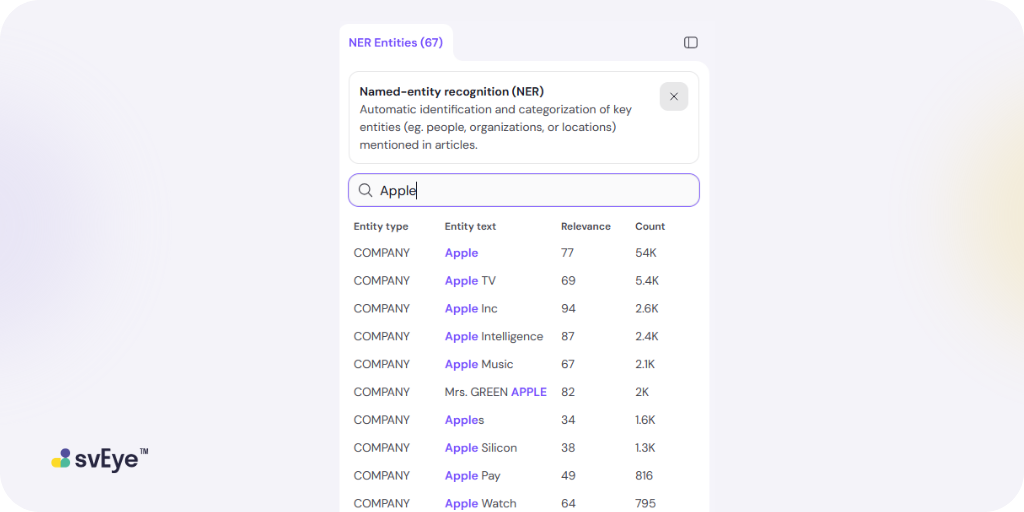
Pro Tip: Once you are comfortable, you can skip Step 1. If you know the precise entity name, type ner:"Apple" directly into the search bar to jump straight to the specific entity.
3. Drill down with categories
Now that you have your subject defined, what do you want to know about it? Use the Category Tree to narrow your focus. The categories are organized hierarchically, allowing you to start with a broad sector and get as granular as you need. You can systematically drill down through the tree structure, or simply use the category search bar to instantly find the specific topic you are interested in.
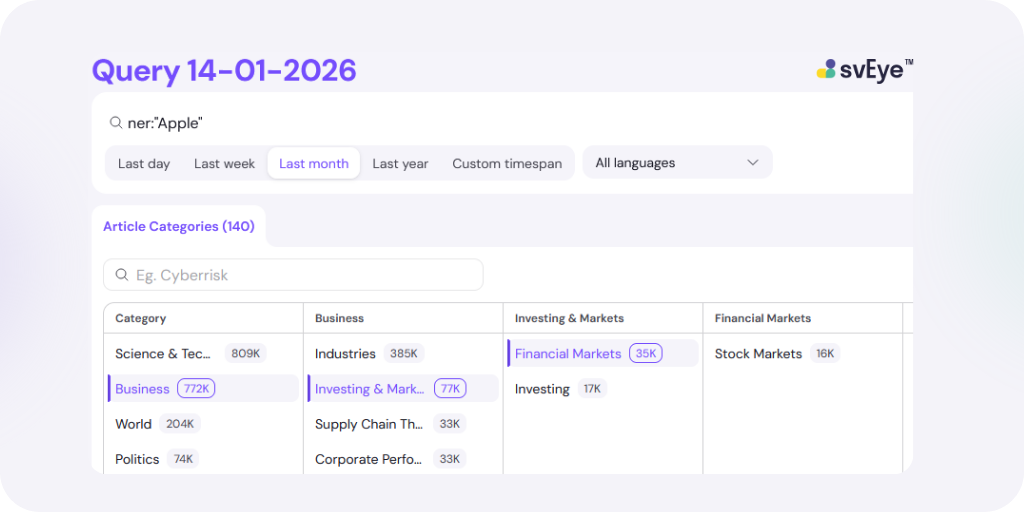
Tip: To keep your interface clean, the system automatically hides categories that are irrelevant to your initial search terms.
4. Put it all together with Boolean Logic (AND / OR / NOT / ONLY)
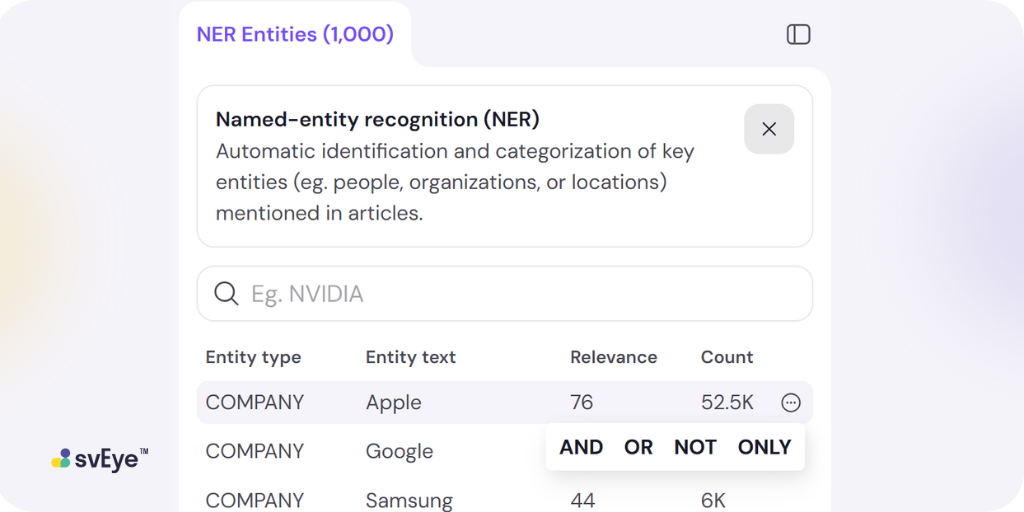
Professional analysis often requires combining multiple conditions. Article Search makes this easy with simple operators located next to every category and entity:
- AND: Use this to focus.
- Example: "Company X" AND "Financial Fraud" (Returns only articles mentioning BOTH).
- OR: Use this to expand.
- Example: "Strike" OR "Protest" (Returns articles mentioning EITHER word).
- NOT: Use this to exclude noise.
- Example: "Mining" NOT "Crypto" (Returns mining articles but removes anything related to cryptocurrency).
- ONLY: Use this to reset.
- Example: You started with a broad keyword search for "Apple." Clicking ONLY next to the "Apple Inc." entity tag replaces your whole search with just that entity, clearing the previous broad keywords.
These logical operators are used to add search words, NER Entities, and Categories to your query. You can add as many Entities and as many Categories as you wish, combining them as you see fit to get the most relevant results.
5. Review, launch, and refine
Before you run the search, take a moment to review your query logic in the search bar. Once you are satisfied, hit the “Run.” svEye will process your request against its global archive and deliver your targeted insights in seconds.
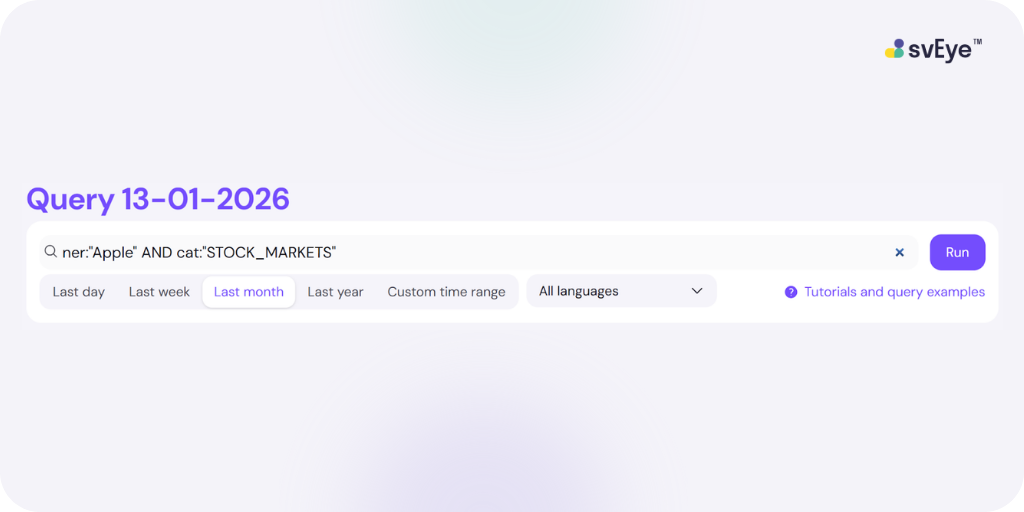
Note: Your query stays in the search bar even after the results load. This allows you to "tweak" your search, adding a filter here, removing a keyword there, until the results are exactly what you need. New results will load only after you press “Run” again.
Results
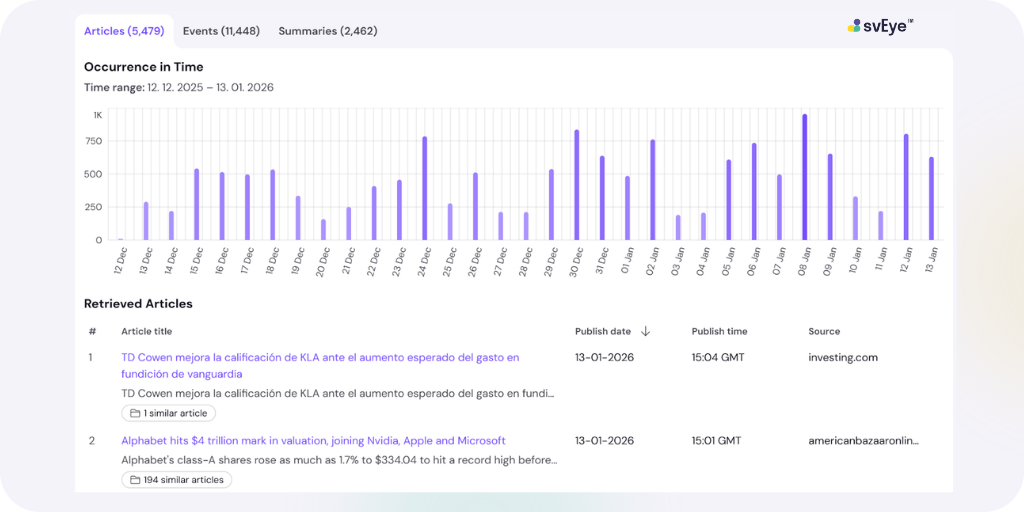
The results provided by Article Search include three parts. The basic is the list of articles with the publish date and time, source, and a link to the article, complemented by a timeline chart. You can enter the articles (unless the link is no longer available by the owner), sort them by the publish date, or add additional filters like the source.
The advanced work with results can be done through Events or Summaries, we will cover these in the next article.
Real-world application
To understand the power of Article Search, let’s look at a practical scenario.
Imagine you need to investigate risks in the construction sector for the week of Jan 8 to 15, 2026. Specifically, you are looking for building projects in New York that are facing corporate crime lawsuits.
Step 1: The broad search
Start by typing "construction" in the query search bar and press Run.
Step 2: The drill down
Now, let’s get specific.
- From the suggestions or Category Tree, select the category CONSTRUCTION_OF_BUILDINGS.
- Add the specific location by selecting the NER Entity New York.
- Add the specific risk by selecting the category CORPORATE_CRIME_LAWSUITS.
Press Run again.
Step 3: The refinement
The system returns 53 articles. A quick scan of the headlines reveals a lot of noise—specifically, articles heavily focused on general political maneuvering.
Since you want to focus purely on the legal and business facts—and avoid the political angle—you decide to exclude this topic. You add the NOT operator followed by the category POLITICS_AND_GOVERNMENT and press Run one last time.
The Final Query: (((cat:"CONSTRUCTION_OF_BUILDINGS") AND ner:"New York") AND cat:"CORPORATE_CRIME_LAWSUITS") NOT cat:"POLITICS_AND_GOVERNMENT"
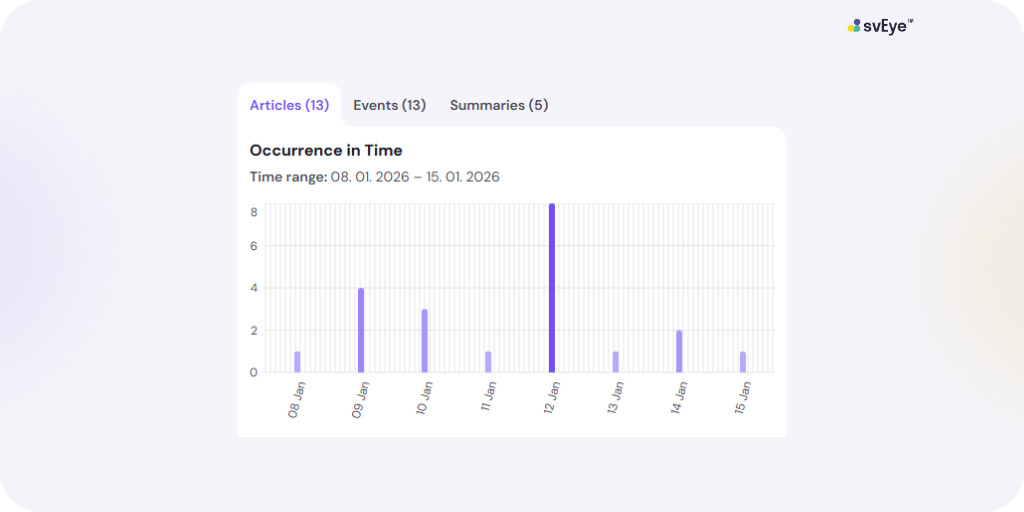
The Result: Your list drops from 53 noisy hits to 13 relevant articles, giving you the intelligence you need in a fraction of the time.
The output: What you get
Once you hit “Run”, the Article Search provides you with a clean, organized view of the data:
- Article List: A list of articles including the publish date, source, and a direct link to the full text.
- Timeline Chart: A visual graph showing the volume of articles over time. This allows you to instantly spot spikes in media coverage that often indicate a breaking story or a major developing event.
- Filters & Inspection: Beyond basic sorting by date or source, you can inspect individual articles to see exactly which NER Entities and Categories the system identified within that specific text.
From raw data to actionable insight
The true advantage of Article Search is transparency. You aren't relying on a black-box summary or a second-hand report; you have direct access to the raw evidence the articles themselves. You can read the source, understand the nuance, and draw your own conclusions with confidence.
But what if you want the system to help connect the dots for you?
In Part 2 of this series, we will show you how to take these search results and use Events and Summaries to pinpoint factual connections and track narratives as they unfold over time. We will also explore advanced filtering tricks that help you automate your intelligence gathering. Stay tuned!
Access Premium Insights
.png)

.avif)
See Everything. Focus on What Matters.
svEye™ filters the noise to uncover meaningful patterns and insights. Gain clarity, stay informed, and drive smarter decisions with a comprehensive overview.

